How to Increase WiFi Speed: Router Placement Is the Biggest Free Upgrade
How-To & Troubleshooting 16 min read By Pragya Singh
In this articleTable of contents14
Last updated: 10 October 2026
You pay for a 100 Mbps or 300 Mbps plan, but videos buffer in the bedroom, video calls freeze and downloads crawl. In most Indian homes, the problem is not the plan itself but how the Wi-Fi reaches your device. This guide shows how to increase WiFi speed step by step: first how to find the real bottleneck, then quick fixes, router placement, choosing between 2.4 GHz and 5 GHz, changing channels, firmware and DNS, mesh and extenders, JioFiber and Airtel Xstream router tips, and device-side fixes for Windows 11 laptops and Android phones.
Quick answer: To increase WiFi speed, place the router high and central, connect nearby devices to the 5 GHz band, restart the router, update its firmware, and switch to a less crowded channel. Remove unknown devices and update laptop Wi-Fi drivers. If far rooms stay slow, add a mesh system. If wired speed is also low, upgrade your plan.
First, find out what is slow
Before changing settings, find out whether the problem is your internet plan, your Wi-Fi signal or your device. Run a speed test using Ookla Speedtest (opens in new tab) or Fast.com (opens in new tab) in three places:
- Next to the router on your phone or laptop, using 5 GHz Wi-Fi.
- In the room where it is slow.
- On a laptop with an Ethernet cable plugged into the router, if possible.
| What you see | What it means | Where to focus |
|---|---|---|
| Wired and near-router speeds are close to your plan, far rooms are slow | Wi-Fi coverage problem | Placement, 5 GHz, mesh |
| Wired speed is fine, every Wi-Fi device is slow even near the router | Router Wi-Fi settings or old router | Channel, firmware, router upgrade |
| Wired speed is also far below your plan | ISP line or plan problem | Restart ONT, call ISP, upgrade plan |
| Only one device is slow | Device problem | Laptop or phone fixes below |
| Speed drops only in the evening | Network congestion (yours or ISP's) | Channel change, QoS, ISP complaint |
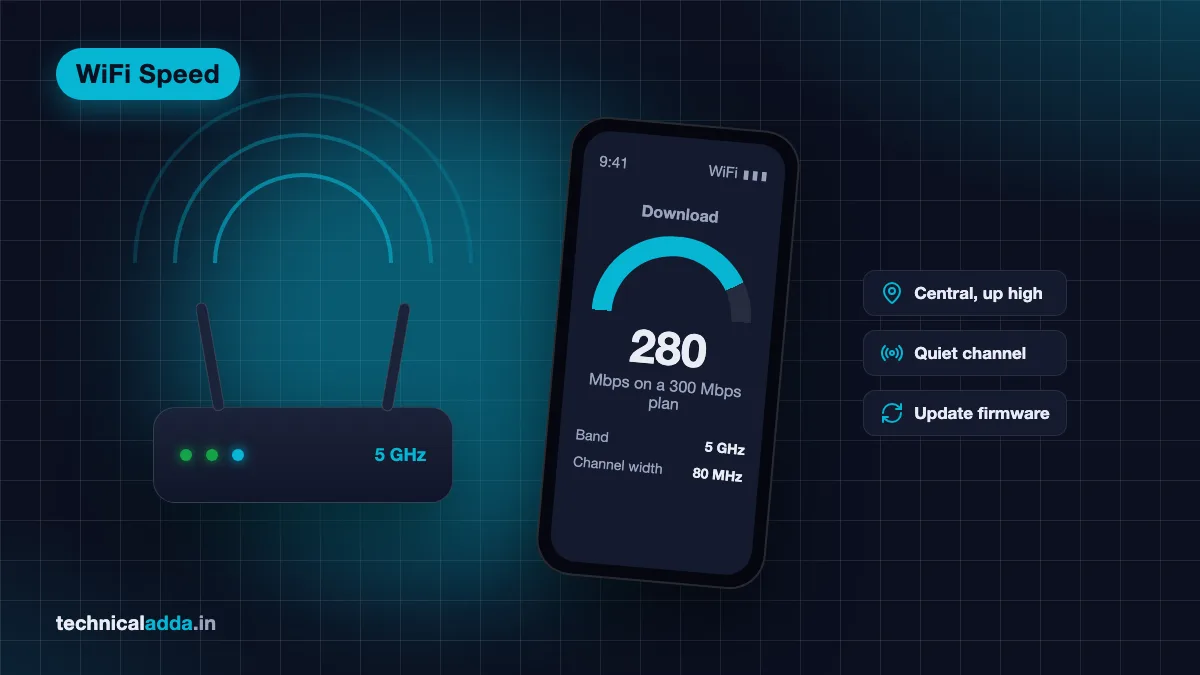
Realistic expectation: Wi-Fi rarely delivers 100% of your plan speed. On a 300 Mbps plan, getting 200 to 280 Mbps on 5 GHz near the router is normal. On 2.4 GHz, 40 to 80 Mbps is common even with a strong signal.
If your device says connected but nothing loads at all, that is a different problem. Use our guide on WiFi connected but no internet instead.
Quick fixes that take 5 minutes
- Restart the router and ONT properly. Switch off at the wall, wait 30 seconds, switch on and wait 2 to 3 minutes. This clears memory leaks and stuck connections.
- Restart your phone or laptop.
- Forget and reconnect to the Wi-Fi network, choosing the 5 GHz network if you have separate names.
- Pause heavy background downloads. Google Photos backup, Play Store or Windows updates, and torrent apps can eat most of your bandwidth.
- Check who is connected. Log in to the router or ISP app and remove unknown devices. If neighbours have your password, change it to a long passphrase; our guide to strong password examples shows how to make one that is easy to type on a TV remote.
- Turn off VPN on the device and test again. Many free VPNs route traffic through distant servers.
- Move closer and test. If speed jumps, it is a coverage problem, and the placement section below matters most.
Router placement: the biggest free upgrade
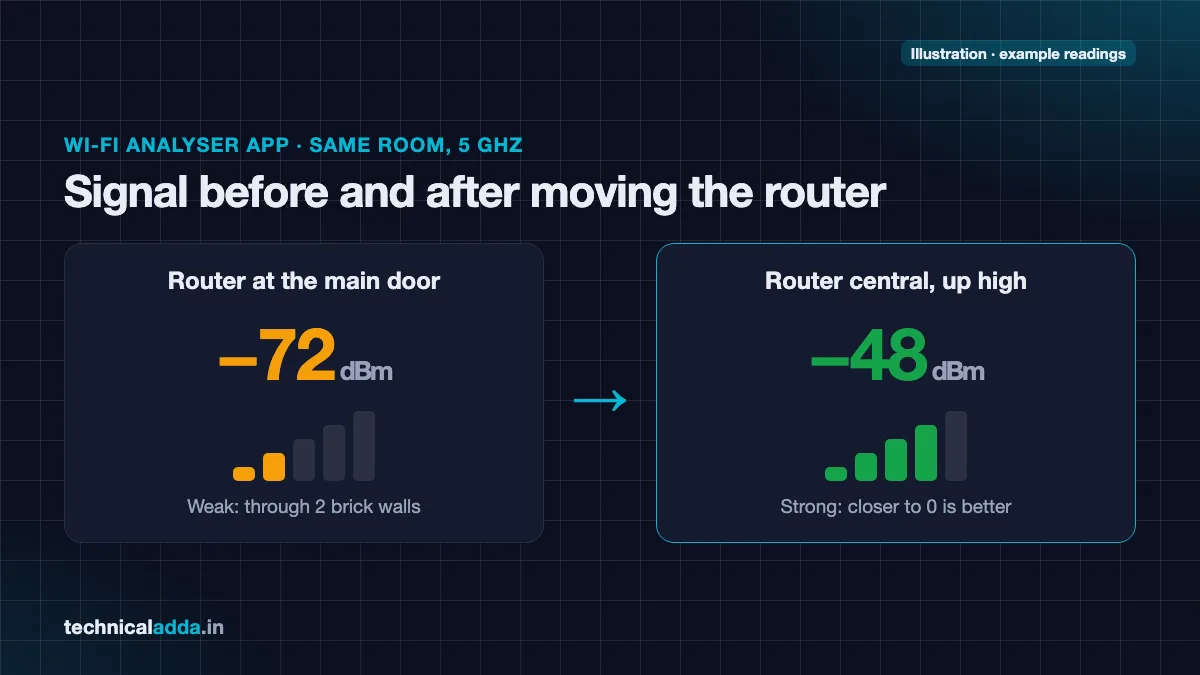
Wi-Fi signals weaken with distance and with every wall. Indian homes with thick brick or RCC walls, steel almirahs and water tanks are especially tough on Wi-Fi. Many ISP technicians install the router near the main door or in a corner where the fibre enters the house, which is often the worst spot.
Best placement rules
- Central location: put the router as close to the middle of the home as possible.
- Up high: on a shelf or wall mount at about head height, not on the floor or behind the TV.
- Out in the open: not inside a cabinet, behind a metal almirah or under the bed.
- Away from interference: microwave ovens, cordless phones, Bluetooth speakers, mirrors, aquariums and large water containers weaken signals.
- Antennas: if the router has external antennas, point some vertically and some horizontally for better coverage across floors and rooms.
Can you move it? If the fibre enters at the main door, ask your ISP to extend the fibre or a LAN cable to a central spot, or place a second router or mesh unit centrally connected by an Ethernet cable.
Airtel's own guide on ways to boost Wi-Fi speed (opens in new tab) also recommends a central, raised position and avoiding corners.
2.4 GHz vs 5 GHz: which band to use
Most modern routers broadcast two bands. Choosing the right one is one of the easiest ways to increase WiFi speed.
| Feature | 2.4 GHz | 5 GHz |
|---|---|---|
| Speed | Lower (often 40 to 100 Mbps real-world) | Higher (often 200 to 600+ Mbps real-world on Wi-Fi 5/6) |
| Range | Longer, better through walls | Shorter, weaker through walls |
| Interference | High: neighbours, Bluetooth, microwaves | Lower: more channels, less crowded |
| Non-overlapping channels | Only 3 (1, 6, 11) | Many |
| Best for | Far rooms, smart plugs, CCTV, old devices | Phones, laptops, smart TVs near the router |
Practical setup for Indian flats and houses:
- Connect phones, laptops and smart TVs within one or two rooms of the router to 5 GHz.
- Keep smart bulbs, smart plugs, CCTV cameras and old devices on 2.4 GHz (many only support 2.4 GHz).
- If your router uses one name for both bands ("band steering" or "Smart Connect"), it decides the band for you. If devices stick to 2.4 GHz when close to the router, give the bands different names, such as
Home-5GandHome-2G, and connect manually.
Change the WiFi channel and channel width
In apartments, dozens of routers may share the same 2.4 GHz channel. Moving to a quieter channel can noticeably improve speed and stability.
Step 1: Find a quiet channel
- Android: install a Wi-Fi analyser app from the Play Store and look at the channel graph for your band.
- Windows: open Command Prompt and run
netsh wlan show networks mode=bssidto see nearby networks and their channels. - Mac: hold Option, click the Wi-Fi icon, open Wireless Diagnostics, then Window > Scan.
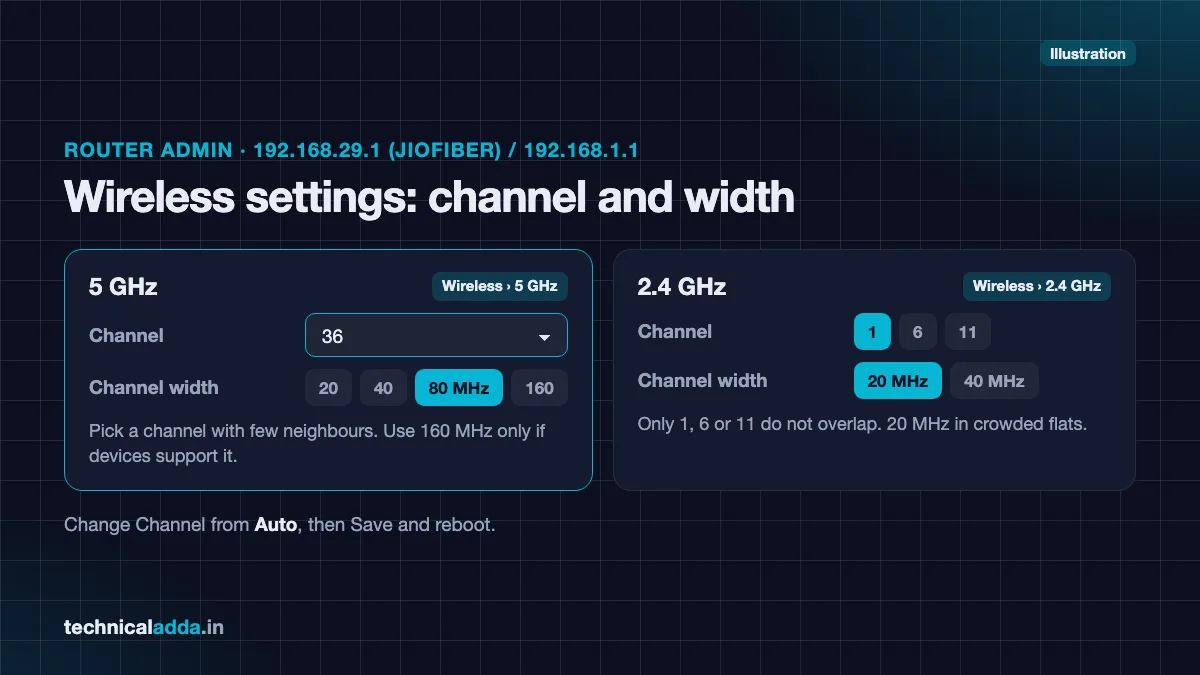
On 2.4 GHz, choose whichever of channels 1, 6 or 11 has the fewest strong networks. On 5 GHz, choose any channel with few or no neighbours.
Step 2: Change it on the router
- Open the router's admin page in a browser (commonly
192.168.29.1on JioFiber and192.168.1.1on many Airtel and TP-Link routers; check the label). - Log in with the admin username and password from the router label.
- Go to Wireless or WLAN settings for each band.
- Change Channel from Auto to the channel you chose. Save and reboot.
Step 3: Set the channel width
- 2.4 GHz: use 20 MHz in crowded apartments. 40 MHz looks faster on paper but often collides with neighbours.
- 5 GHz: use 80 MHz for the best speed on Wi-Fi 5 and Wi-Fi 6. Use 160 MHz only if your router and devices support it and there is little interference.
Note: whether you can pick a channel depends on the router model and firmware, and some ISP-supplied routers lock or hide the setting. Jio's help pages, for example, cover changing the Wi-Fi name and password in the MyJio app but not the channel. If the option is missing, ask the ISP technician.
Router settings that increase WiFi speed
- Update firmware. Router makers fix bugs and improve performance through updates. ISP routers usually update automatically; for TP-Link, Asus, Netgear and similar routers, check System Tools > Firmware Upgrade or the mobile app.
- Use WPA2-AES or WPA3 security. Old WEP or WPA-TKIP modes can limit speeds to Wi-Fi 4 levels and are insecure.
- Turn on QoS (Quality of Service) if your router supports it, and prioritise work laptops or video calls over downloads.
- Change DNS on the router to a fast public resolver such as Google (
8.8.8.8,8.8.4.4) or Cloudflare (1.1.1.1,1.0.0.1). DNS does not raise download speed, but it can make websites start loading faster if your ISP's DNS is slow. - Schedule a weekly reboot if your router supports it. Cheap routers often slow down after days of uptime.
- Disable legacy modes like "802.11b only" if available, so old standards do not slow the whole network.
- Use Ethernet for fixed devices. Smart TVs, desktop PCs and gaming consoles near the router should use a Cat6 cable. This frees Wi-Fi airtime for phones and laptops.
JioFiber and Airtel Xstream Fiber tips
Most Indian broadband users have an ISP-supplied combo device (fibre ONT plus Wi-Fi router). Menu names change with firmware, so treat these as a guide.
JioFiber
- Router admin: usually
192.168.29.1. Jio does not publish default admin credentials, so use the login printed on the router label; for everyday changes Jio points customers to the MyJio app instead. - Separate the bands: in the Wi-Fi settings, check whether 2.4 GHz and 5 GHz have separate names; if they are combined, rename them so you can choose 5 GHz manually.
- Change the Wi-Fi password in the MyJio app: log in with your JioFiber number, select Fiber Account, tap My Device, scroll to Wi-Fi Settings, tap your network name and use the pencil icon next to Edit Password. JioAirFiber users go to Network > WiFi Settings in the JioHome app instead. Check the list of connected devices on the router admin page (Jio FAQ (opens in new tab)).
- Set-top box on Ethernet: the Jio set-top box streams a lot of data; keep it on a LAN cable rather than Wi-Fi where possible.
- Plan check: compare your wired speed with your plan in the MyJio app. If it is consistently far lower, raise a complaint through the MyJio or JioHome app, or message JioHome support on WhatsApp at 7000570005, as listed on Jio's contact page (opens in new tab).
Airtel Xstream Fiber
- Router admin: many Airtel routers use
192.168.1.1; some newer units are managed mainly through the Airtel Thanks app. Check the label. - Match the band to the device: Airtel's own speed tips suggest 5 GHz for smart TVs and gaming, and 2.4 GHz for security cameras and smart speakers.
- Manage devices and passwords through the Airtel Thanks app or the router admin page.
- Ask for a channel change if your model locks it; some users report the 5 GHz channel is fixed to Auto in firmware.
- Complaints: Airtel's contact page (opens in new tab) lists 121 for broadband customer care; you can also raise a request in the Airtel Thanks app if wired speeds are below your plan.
Jio AirFiber and Airtel Xstream AirFiber
These 5G home internet services depend on mobile signal, so the installer chooses the spot after checking 5G strength. Jio says the AirFiber outdoor unit is installed on the terrace, rooftop or outside the home, with the Wi-Fi router indoors. Airtel says Xstream AirFiber works only where its 5G network is available and installs it only up to the 7th floor, because signal is poor at greater height (Airtel AirFiber page (opens in new tab)). Inside the home, use the router placement tips above for coverage.
How to increase WiFi speed in laptop (Windows 11)
If your phone is fast but the laptop is slow on the same network, try these. Microsoft's guide to fixing Wi-Fi problems in Windows (opens in new tab) covers the basics; these steps focus on speed.
1. Check which band and standard you are on
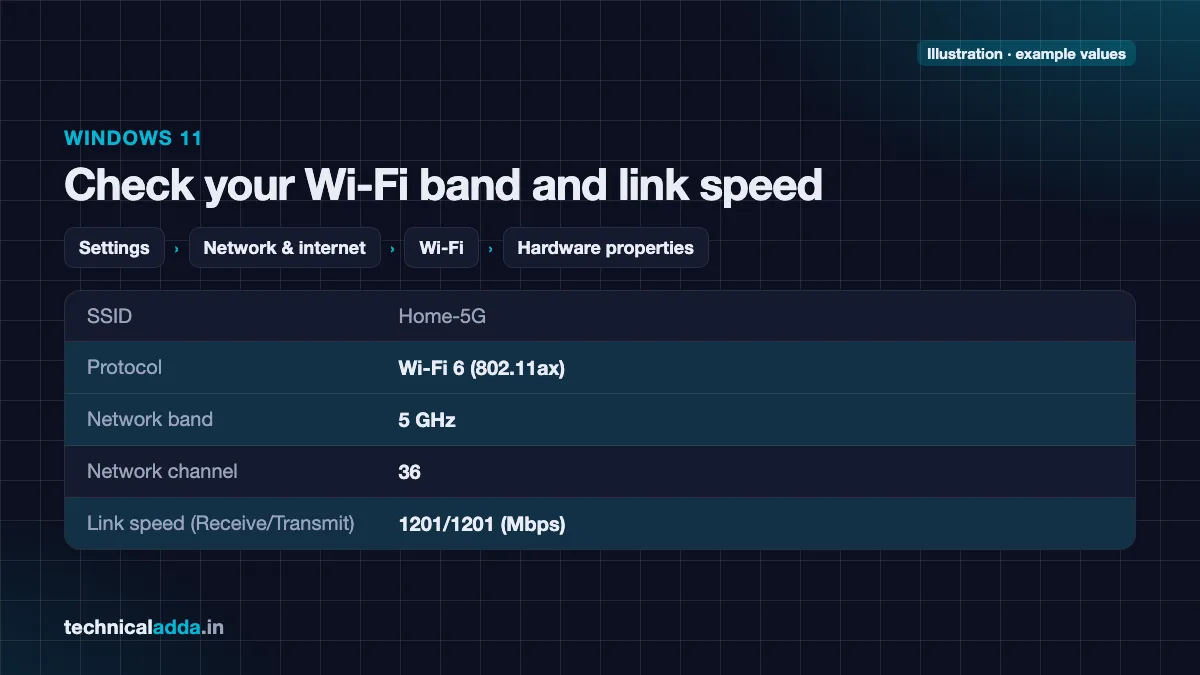
Go to Settings > Network & internet > Wi-Fi > Hardware properties (or click your network's properties). Look at Protocol (for example Wi-Fi 5 or Wi-Fi 6), Network band (2.4 GHz or 5 GHz) and Link speed. If you see 2.4 GHz near the router, connect to the 5 GHz network instead.
2. Update the Wi-Fi driver
- Right-click Start > Device Manager.
- Expand Network adapters, right-click the Wi-Fi adapter (Intel, Realtek, MediaTek or Qualcomm) and choose Update driver.
- For the best results, download the latest driver from the laptop maker's support site (HP, Dell, Lenovo, Asus, Acer) or the chip maker.
3. Set the adapter to prefer 5 GHz
In Device Manager, open the Wi-Fi adapter's Properties > Advanced tab. If you see Preferred Band, set it to Prefer 5 GHz band. Options differ by adapter brand.
4. Stop power saving from slowing Wi-Fi
- In the adapter's Power Management tab, untick Allow the computer to turn off this device to save power.
- In Control Panel > Power Options > Change plan settings > Change advanced power settings, set Wireless Adapter Settings > Power Saving Mode to Maximum Performance (on laptops that show this option).
- In Settings > System > Power & battery, set Power mode to Best performance while plugged in.
5. Limit background bandwidth
- Windows Update: Settings > Windows Update > Advanced options > Delivery Optimization, and turn off downloads from other PCs or set bandwidth limits.
- OneDrive and Google Drive: pause syncing during calls.
- Check Task Manager > Performance > Wi-Fi and the Processes tab's Network column to see what is using bandwidth.
6. Reset the network stack if speeds are erratic
Open Command Prompt as administrator and run:
netsh winsock reset
netsh int ip reset
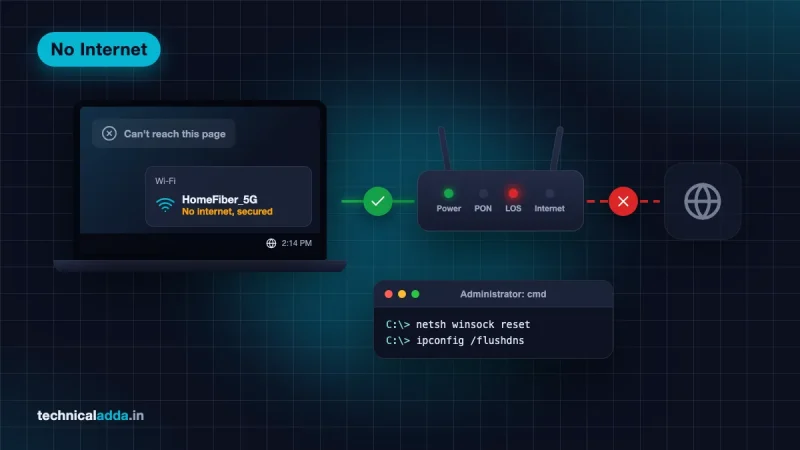
ipconfig /flushdns
Restart the PC afterwards. If the laptop is slow in general, not just on Wi-Fi, our Windows 11 slow laptop fix guide covers startup apps, storage and RAM.
7. Consider a USB Wi-Fi 6 adapter
Older laptops with Wi-Fi 4 (802.11n) cards are capped at low speeds. A USB Wi-Fi 6 adapter can be a cheap upgrade if your router supports Wi-Fi 5 or 6.
How to increase WiFi speed in mobile (Android and iPhone)
Android
- Connect to 5 GHz: go to Settings > Network & internet > Internet (or Connections > Wi-Fi on Samsung), tap your network and check the frequency or link speed shown in its details.
- Forget and reconnect if the phone keeps choosing 2.4 GHz.
- Set Private DNS: Settings > Network & internet > Private DNS > Private DNS provider hostname, and enter
dns.googleorone.one.one.one. This can make websites resolve faster. If anything breaks, set it back to Automatic. - Check background data hogs: Settings > Network & internet > Data usage (or Connections > Data usage) shows which apps use the most Wi-Fi data.
- Turn off battery saver while testing, as aggressive power saving can reduce network performance on some phones.
- Update Android and the phone's firmware, which often includes Wi-Fi fixes.
- Remove suspicious apps. If your data use is high with no obvious reason, read our guide on how to check if your phone is hacked.
- Reset network settings as a last step: open Settings > System > Reset options and pick the option that resets Wi-Fi and network settings (the exact name varies by phone brand and Android version).
iPhone
- Go to Settings > Wi-Fi, tap the (i) next to your network, and make sure Low Data Mode is off.
- Turn off Limit IP Address Tracking for your home network if websites are slow to load.
- Set Configure DNS to Manual and add
1.1.1.1and8.8.8.8if your ISP's DNS seems slow. - Update iOS from Settings > General > Software Update.
- As a last step, Settings > General > Transfer or Reset iPhone > Reset > Reset Network Settings.
Mesh WiFi vs extender vs powerline
If the far bedroom or upper floor stays slow after placement and settings fixes, you need more access points.
| Option | How it works | Pros | Cons | Best for |
|---|---|---|---|---|
| Wi-Fi extender | Repeats the router's signal | Cheap, easy | Often halves speed, separate network name on some models | One dead spot in a small flat |
| Mesh Wi-Fi system | Two or more units create one continuous network | Strong, even coverage, one network name, roaming | Costs more | 2 to 4 BHK, duplex, independent houses |
| Second router in Access Point mode | Old/new router connected by LAN cable | Full speed if wired | Needs a cable run | Homes where a cable can reach the far room |
| Powerline adapters | Send network over electrical wiring | No new cables | Performance varies with wiring | Older buildings where Wi-Fi cannot pass walls |
Setup tips
- Place an extender or mesh node halfway between the router and the dead zone, where it still gets a good signal, not inside the dead zone.
- Wherever possible, connect mesh units with Ethernet (wired backhaul) for the best speed.
- Keep your ISP router as the main gateway and put a new router or mesh in Access Point mode to avoid double NAT problems with gaming and video calls.
Options to consider:
Prices change frequently on Amazon; check the live price and the seller before buying.
When to upgrade your plan or router
Upgrade your internet plan when:
- Wired speed tests regularly match your plan, but your household still runs out of bandwidth (several 4K streams, video calls and cloud backups together).
- You work from home with large uploads; check the plan's upload speed, not just download.
- Your current plan is 30 to 50 Mbps and you have more than five or six active users.
Upgrade your router when:
- It is more than four or five years old, or supports only Wi-Fi 4 (802.11n).
- Wired speed is close to your plan, but Wi-Fi near the router is far lower.
- It hangs or needs frequent restarts when 10 or more devices connect.
- Your ISP router has poor coverage and the ISP will not replace it.
Don't upgrade when:
- The problem is distance or walls only; placement or mesh fixes that.
- Only one old laptop or phone is slow; fix or replace the device's Wi-Fi instead.
- Wired speed is also low; that needs your ISP, not new hardware.
Your Wi-Fi fixes in the order to try them
- Run three speed tests (next to the router, in the slow room, over Ethernet) before you touch any setting.
- Move the router to a central, raised spot and put nearby phones and laptops on 5 GHz; both are free.
- On 2.4 GHz pick channel 1, 6 or 11 at 20 MHz width; on 5 GHz use 80 MHz.
- Update router firmware and the laptop's Wi-Fi driver, and turn off adapter power saving.
- On JioFiber or Airtel, give the two bands separate names and kick off unknown devices.
- Buy mesh for multi-floor homes; pay for a faster plan only when the wired test is the slow one.
Fix the router spot first, buy hardware last
The quickest way to increase WiFi speed is to name the real bottleneck first: your plan, your Wi-Fi coverage or your device. For most Indian homes, moving the router to a central, high spot, using 5 GHz nearby, picking a quiet channel and updating firmware and drivers make a big difference without spending anything. Add mesh for large homes, and upgrade your plan only when wired speed is the limit. If your connection drops completely, follow our WiFi connected but no internet fix guide, or browse more fixes in our How-To & Troubleshooting section.
FAQ
Frequently Asked Questions
How can I increase my WiFi speed at home for free?
Restart the router properly, move it to a central and high location, connect nearby devices to the 5 GHz band, and change to a less crowded channel. Also update the router firmware, remove unknown devices, pause background downloads and change your Wi-Fi password if others are using it. These free steps fix most slow Wi-Fi.
How do I increase WiFi speed in my laptop on Windows 11?
Connect to the 5 GHz band, update the Wi-Fi driver from the laptop maker's website, set the adapter's Preferred Band to 5 GHz, and turn off power saving for the adapter. Also set Power mode to Best performance while charging, limit Delivery Optimization and pause cloud syncing. Reset Winsock and TCP/IP if speeds are erratic.
How can I increase WiFi speed on my mobile phone?
Connect to the 5 GHz network, forget and reconnect if the phone sticks to 2.4 GHz, and update the phone's software. Set Private DNS to dns.google or one.one.one.one, check which apps use the most data, and turn off battery saver while testing. Reset the phone's network settings as a last step.
Is 5 GHz faster than 2.4 GHz?
Yes, 5 GHz is usually much faster and less crowded than 2.4 GHz, so it is better for phones, laptops and TVs near the router. However, 2.4 GHz travels farther and passes through walls better. Use 5 GHz within one or two rooms of the router and 2.4 GHz for far rooms and smart home devices.
Does changing DNS increase internet speed?
Changing DNS does not raise your download or upload speed. It can make websites start loading faster if your ISP's DNS server is slow or unreliable, because the domain lookup happens quicker. Public resolvers like Google (8.8.8.8) or Cloudflare (1.1.1.1) are popular choices. Test before and after, as results vary by location.
How do I increase JioFiber WiFi speed?
Place the JioFiber router centrally and high, give the 2.4 GHz and 5 GHz bands separate names, and connect nearby devices to 5 GHz. Remove unknown devices and change the Wi-Fi password through the router admin page (often 192.168.29.1) or the Jio app. Keep the set-top box on Ethernet. If wired speed is low, raise a complaint in the MyJio app.
Do WiFi extenders really work?
Yes, Wi-Fi extenders work for a single dead spot in a small home, but they usually cut speed because they receive and resend the same signal. Place the extender halfway between the router and the dead zone where the signal is still strong. For bigger homes or multiple floors, a mesh system gives faster and more consistent coverage.
Why is my WiFi slow but mobile data fast?
Your Wi-Fi may be slow because of distance, walls, a crowded channel, too many connected devices or an old router, while mobile data uses a separate 4G or 5G network. Test speed near the router and over Ethernet. If wired speed is fine, fix the Wi-Fi; if wired speed is also low, contact your broadband provider.
How often should I restart my router?
Restart your router whenever speeds drop or connections become unstable, and consider a weekly scheduled reboot if your router supports it. Restarting clears memory and refreshes the connection to your ISP. Switch it off at the wall, wait about 30 seconds, then switch it on and wait two to three minutes before testing.
Will a new router increase my internet speed?
A new router increases Wi-Fi speed only if your old router is the bottleneck, for example an old Wi-Fi 4 model or one that cannot cover your home. It will not raise your plan speed. If wired speed matches your plan but Wi-Fi is much slower near the router, a Wi-Fi 6 router or mesh system will help.
Where to buy
-
Check price on Amazon (opens in new tab)
Cat6 Ethernet cable
-
Check price on Amazon (opens in new tab)
USB Wi-Fi 6 adapter
-
Check price on Amazon (opens in new tab)
TP-Link Archer AX23 Wi-Fi 6 router
-
Check price on Amazon (opens in new tab)
TP-Link Deco X10 mesh (2-pack)
-
Check price on Amazon (opens in new tab)
TP-Link RE505X Wi-Fi 6 range extender