WordPress Not Sending Email on DigitalOcean? Fix It Free With the Gmail API
Web Hosting & Servers 13 min read By Sanjeev Pratap Singh
In this articleTable of contents13
Last updated: 5 November 2026
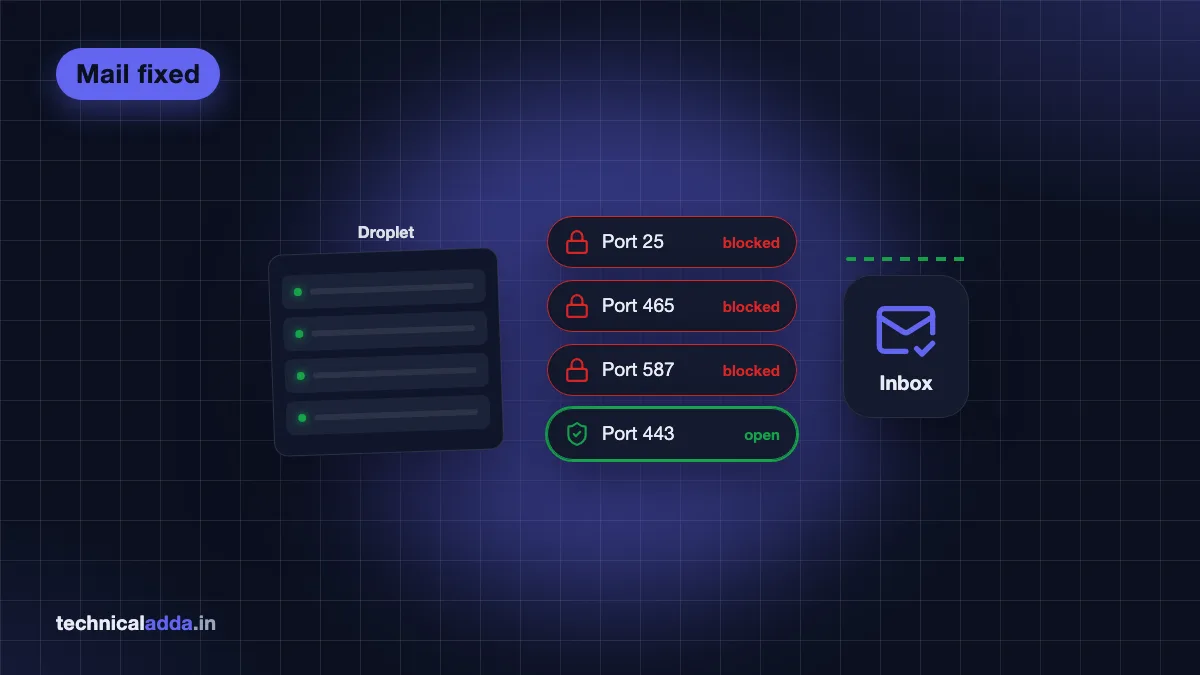
If your WordPress site is not sending email on DigitalOcean, the problem is almost never WordPress. DigitalOcean blocks outgoing SMTP on its Droplets, on ports 25, 465 and 587. Every SMTP plugin, every Gmail app password and every "check your SMTP settings" tip fails for the same reason: the connection never leaves the server.
The free fix is to stop using SMTP. The Gmail API sends mail over HTTPS on port 443, which DigitalOcean does not block. I hit this on Technical Adda today. The contact form saved every message but emailed none of them. Switching to the Gmail API fixed it in about 20 minutes, with no paid service.
Quick answer: DigitalOcean blocks outbound SMTP ports 25, 465 and 587, so WordPress mail fails with "SMTP Error: Could not connect to SMTP host". Send through the Gmail API instead: create a Google Cloud OAuth client, enable the Gmail API, get a refresh token from OAuth Playground and paste the three values into your mail plugin. It's free and uses port 443.
Why WordPress is not sending email on DigitalOcean
DigitalOcean blocks outgoing SMTP traffic on Droplets to stop spam. Its own support page, Why is SMTP blocked? (opens in new tab), says ports 25, 465 and 587 are blocked, and that the block also covers traffic through a Reserved IP. Port 25 has been closed for years. Forum posts quoting DigitalOcean's release notes put the block on 465 and 587 in March 2025, which is why many sites that worked fine before suddenly went quiet.
That matters because every normal mail setup uses those ports:
- PHP mail() hands mail to a local server that tries port 25.
- Gmail SMTP with an app password uses 465 or 587.
- Zoho, Outlook and most hosting mailboxes use 465 or 587.
So WordPress builds the message, your plugin opens a connection to smtp.gmail.com, and the packet dies at DigitalOcean's network edge. Nothing is wrong with your password or your plugin.
This is how it looked on my site. Theme Settings had Gmail SMTP on port 465 with a correct app password. The "Send test email" button hung for about 16 seconds and then printed this:
SMTP Error: Could not connect to SMTP host. Failed to connect to server
The contact form was worse, because it failed silently. Messages were saved in the WordPress admin, but no notification ever reached the inbox, so nobody knew anyone had written in.
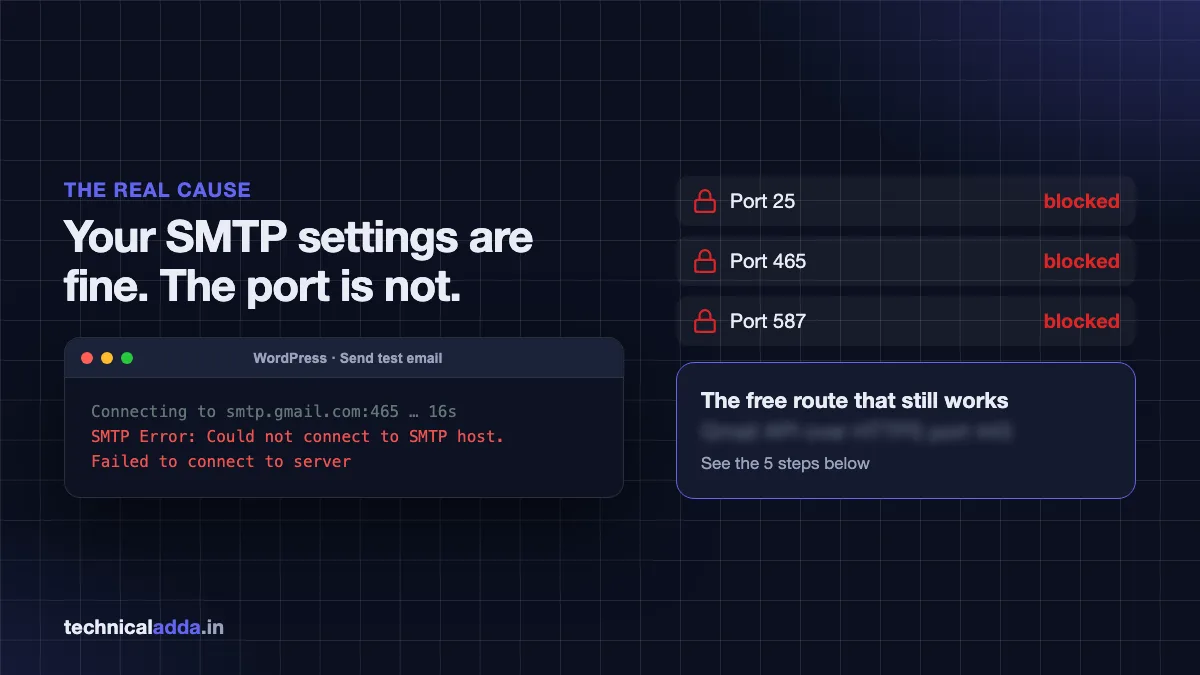
The error is the same whichever SMTP provider you use, because the connection never leaves the Droplet.
Confirm the block in 10 seconds
Before you change anything, prove the port is the problem. SSH into the Droplet (our guide to connecting to a VPS using SSH covers this) and run:
for p in 25 465 587 2525 443; do
  timeout 5 bash -c "</dev/tcp/smtp.gmail.com/$p" && echo "$p open" || echo "$p blocked"
done
On my Droplet the result was:
| Port | Used by | Result on DigitalOcean |
|---|---|---|
| 25 | PHP mail, server to server | Blocked |
| 465 | SMTP over SSL (Gmail, Zoho) | Blocked |
| 587 | SMTP with STARTTLS | Blocked |
| 2525 | Alternative SMTP port (Brevo, Mailgun, SendGrid) | Open (tested against Brevo) |
| 443 | HTTPS, used by mail APIs | Open |
Port 2525 doesn't answer on smtp.gmail.com because Google doesn't listen there. Test it against smtp-relay.brevo.com instead. If 465 and 587 say "blocked", stop debugging your plugin. The fix is a different route out.
Your three options compared
You have three real ways out. Asking support to unblock SMTP is the slowest, and DigitalOcean staff say on its forums that they often can't lift it.
| Option | Cost | Setup time | Daily limit | Best for |
|---|---|---|---|---|
| Gmail API (OAuth) | Free | About 20 minutes | Your Gmail account's normal limit (around 500 recipients a day on free Gmail) | Contact forms, admin alerts, small sites |
| Brevo SMTP on port 2525 | Free plan | About 5 minutes plus sender verification | 300 emails a day on the free plan | People who don't want to touch Google Cloud |
| Ask DigitalOcean to unblock | Free | Days, often refused | Not applicable | Rarely worth it |
My pick is the Gmail API if your site sends from a Gmail or Google Workspace address. Mail goes out from Google's own servers, so it lands in the inbox instead of spam, and there's no third account to manage. If Google Cloud Console looks scary, use Brevo. Both are covered below.
Step 1: create the Google Cloud project and enable the Gmail API
Sign in to Google Cloud Console (opens in new tab) with the Gmail account your site will send from. Use that exact account for every step. A token made with a different account sends as that account.
- Click the project picker at the top, then New project. Name it something you'll recognise, like "Site mail". No billing account is needed.
- Open APIs & Services → Library.
- Search for Gmail API, open it and click Enable.
This is a common reason for "Gmail API has not been used in project" errors later. If you skip it, the token works but the send call is refused.
People often confuse this with Search Console. They're different tools. Search Console is for Google Search data, and you don't need it here.
Step 2: set up the consent screen and publish it
Google calls this part the Google Auth Platform now. It decides who can sign in to your little app and what they're allowed to do.
- Open Google Auth Platform → Branding and fill in the app name and your support email.
- Under Audience, choose External.
- Under Data Access, add the scope
https://www.googleapis.com/auth/gmail.send. That scope can only send mail. It can't read your inbox, which is what you want. - Back under Audience, click Publish app so the status reads In production.
The last step is the one guides skip. While the app is in Testing, Google expires refresh tokens after 7 days. Your mail works for a week, then stops with "invalid_grant", and you'll go looking for a new bug. Publish first, then make the token.
You don't need Google's app verification for a site that only sends from your own account. When you sign in later, Google shows an "unverified app" warning, and you click past it. Nobody else ever sees that screen.
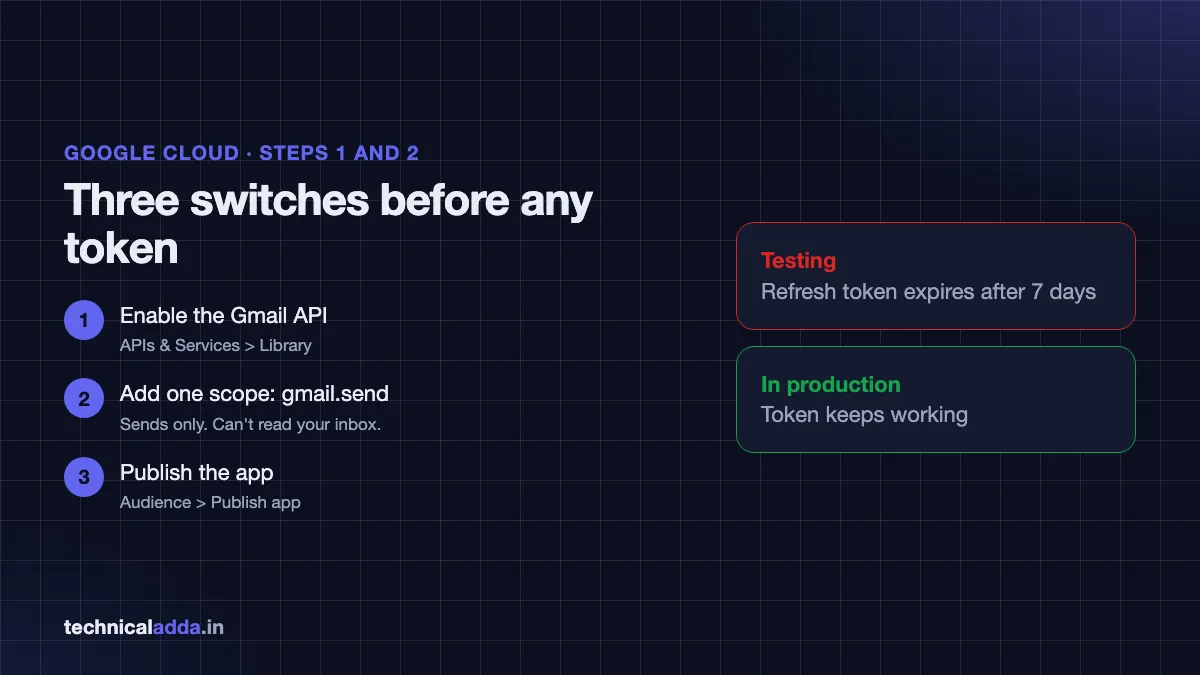
Publishing the app is what stops the refresh token from expiring after 7 days.
Step 3: create the OAuth client ID
- Open Google Auth Platform → Clients (or APIs & Services → Credentials) and click Create client.
- Application type: Web application.
- Under Authorised redirect URIs, add the address that will receive the sign-in:
- If you'll get the token from OAuth Playground (Step 4), add
https://developers.google.com/oauthplayground. - If your plugin does the sign-in itself, add the redirect URI it shows on its settings page instead.
- If you'll get the token from OAuth Playground (Step 4), add
- Click Create and download the JSON file.
The JSON holds your Client ID (ends in .apps.googleusercontent.com) and Client Secret (starts with GOCSPX-). Treat the secret like a password. Don't paste it into chats, screenshots or public repos.
Check the redirect URI if you see "Error 400: redirect_uri_mismatch". My first JSON had an empty redirect_uris list, and Google refuses the sign-in until the address is there, exactly as typed.
Step 4: get the refresh token from OAuth Playground
The refresh token is the long-lived key that lets WordPress ask Google for a fresh access token every hour. You get it once, through a sign-in.
- Open OAuth 2.0 Playground (opens in new tab).
- Click the gear icon, tick Use your own OAuth credentials, and paste your Client ID and Client Secret.
- In Step 1 on the left, type
https://www.googleapis.com/auth/gmail.sendin the box and click Authorize APIs. - Sign in with the sending account. At the unverified-app warning, click Advanced, then Continue, then Allow.
- You're sent back to the Playground with an authorisation code filled in. Click Exchange authorization code for tokens straight away, because the code expires in minutes.
- Copy the Refresh token. It starts with
1//.
You can ignore Step 3, "Configure request to API". That's for testing calls by hand, and WordPress does that part for you.
The Playground shows a note that it revokes refresh tokens after 24 hours. That applies only when you use the Playground's own built-in credentials. With your own client ID, as here, the token lasts.
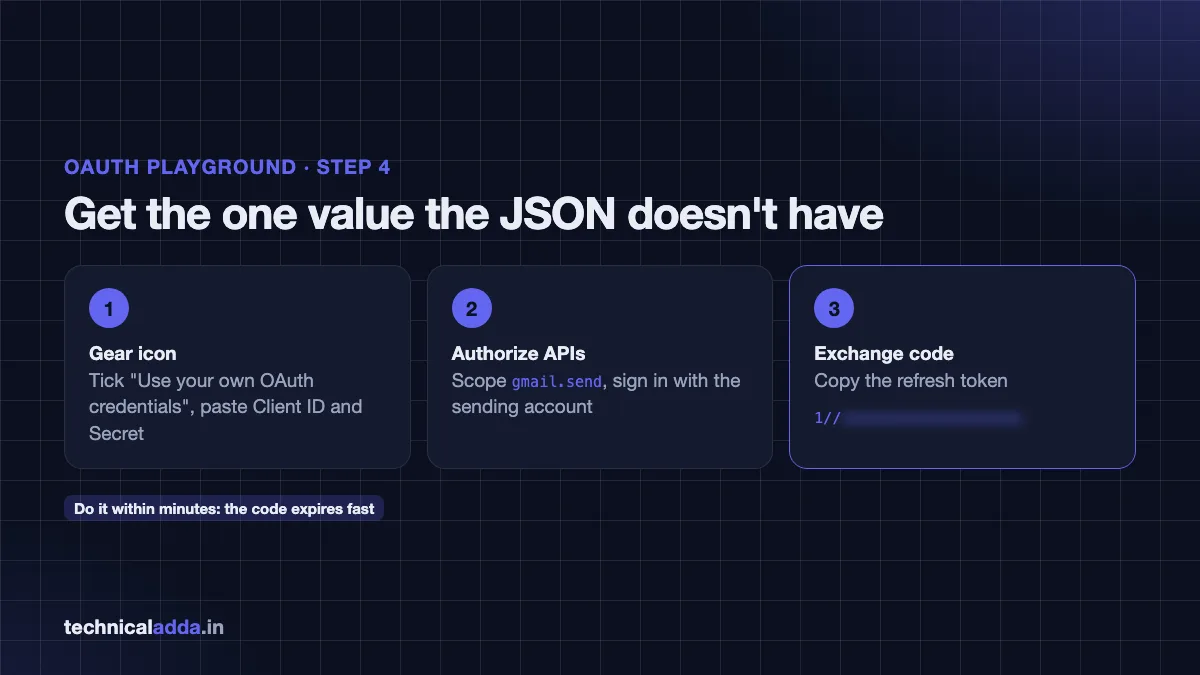
The refresh token is the only value you can't copy from the JSON file. You get it from this sign-in.
Step 5: connect WordPress and send a test
You now have three values: Client ID, Client Secret and Refresh token. Where they go depends on your setup.
With WP Mail SMTP (free version). Install it, open WP Mail SMTP → Settings, and pick Google / Gmail as the mailer. Paste the Client ID and Secret, copy the redirect URI the plugin shows into your Google client (Step 3), save, and click Allow plugin to send emails using your Google account. The plugin runs the sign-in itself, so you don't need the Playground token. Its Gmail mailer uses the API, not SMTP, so it works on DigitalOcean.
With a theme or plugin that takes a refresh token directly. Paste all three values, switch the mail method to Google or Gmail API, and save. This is what I did. Technical Adda's theme has a Google sign-in mode in Theme Settings → Email that posts the finished message to Gmail's messages.send endpoint over HTTPS.
Then test both paths, because they can fail separately:
- Click the plugin's Send test email button and check the inbox, including spam.
- Submit your real contact form with your own details and check that the notification arrives.
On my site the test email arrived in seconds with no error, and so did the contact form notification. The same Droplet that had hung for 16 seconds on port 465 now sends instantly on port 443.
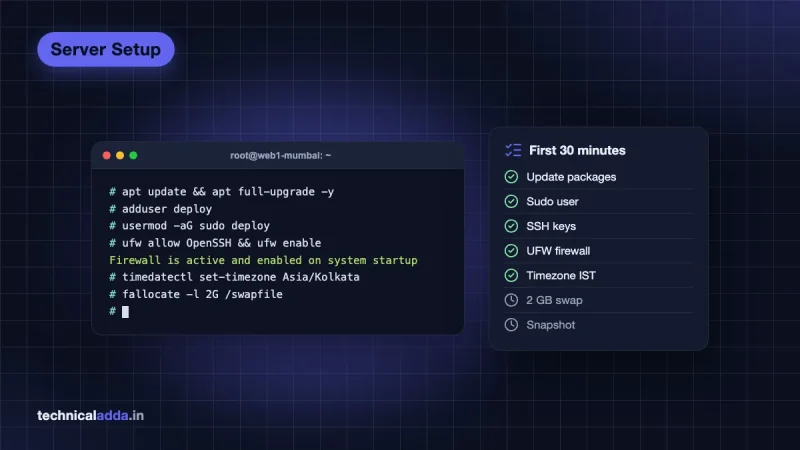
If the plugin settings live in wp-config.php constants, use those rather than the database, so a database export never carries your secret. That's good practice on any VPS. Our guide to securing a Linux VPS server covers the rest of the basics.
The no-Google alternative: Brevo on port 2525
If you'd rather not touch Google Cloud at all, Brevo's free plan relays mail over SMTP on port 2525, which DigitalOcean doesn't block. From my Droplet, port 2525 to smtp-relay.brevo.com connected straight away while 465 and 587 were dead.
- Sign up at Brevo (opens in new tab) on the free plan.
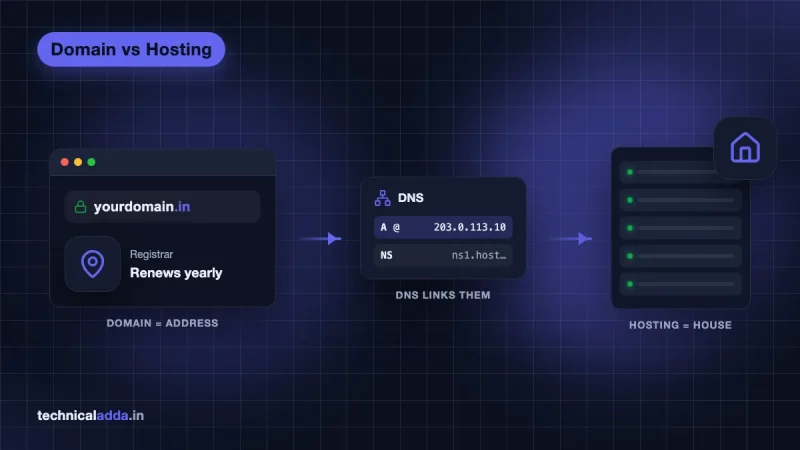
- Under Senders, Domains & Dedicated IPs, add and verify your sending address or domain. Add the SPF and DKIM records it gives you at your DNS host. Our guide to domain vs hosting explains where DNS lives if you're unsure.
- Under SMTP & API → SMTP, copy your SMTP login and generate an SMTP key.
- In your SMTP plugin, use these settings:
| Setting | Value |
|---|---|
| Host | smtp-relay.brevo.com |
| Port | 2525 |
| Encryption | TLS (STARTTLS) |
| Username | Your Brevo SMTP login |
| Password | Your Brevo SMTP key (not your account password) |
Brevo's help centre puts the free plan at 300 emails a day, resetting daily. That's plenty for a contact form and password resets. A WooCommerce store sending order mail for hundreds of orders a day will outgrow it.
The trade-off against the Gmail API: Brevo needs DNS records and its own account, and mail goes out from Brevo's servers rather than Google's. The Gmail API needs no DNS changes if you already send from that Gmail address.
Mistakes that break Gmail API mail later
These caught me, or nearly did, during the setup:
- Leaving the app in Testing. The refresh token dies after 7 days. Publish to In production, then generate a new token, because one made in Testing may still carry the 7-day limit.
- Signing in with the wrong Google account. The token sends as whoever signed in. If your browser was logged into a personal account, you'll mail customers from it.
- Missing redirect URI. Causes
redirect_uri_mismatchon sign-in. Add it in the OAuth client, exactly as the tool expects. - Slow code exchange. The Playground's authorisation code is short-lived. If the exchange fails, run Step 1 again.
- Revoking access by accident. Removing the app under your Google Account's Third-party connections kills the token instantly.
- Changing your Google password. Can revoke tokens for the Gmail scope. Make a new refresh token after a password change.
- Sharing the secret or token. Anyone with your Client Secret and Refresh token can send mail as you. If they leak, reset the secret in Cloud Console and make a new token.
- Sending too much. Free Gmail allows around 500 recipients a day, and Google Workspace accounts get more. Our Google Workspace price in India guide covers what a paid account costs if you need higher limits or a custom-domain sender.
What to set up on a DigitalOcean WordPress site
- DigitalOcean blocks outbound ports 25, 465 and 587, so SMTP plugins fail with "Could not connect to SMTP host" whatever settings you enter.
- Run the 10-second port test first. If 443 is open and 465 and 587 are blocked, use an API or port 2525.
- The Gmail API is free, sends over HTTPS and needs three values: Client ID, Client Secret and Refresh token.
- Publish the Google app to In production before you make the refresh token, or it expires in 7 days.
- Brevo on port 2525 is the quickest free alternative, at 300 emails a day.
- Test both the plugin's test email and your real contact form, because one can work while the other doesn't.
Fix the route, not the password
When WordPress is not sending email on DigitalOcean, changing passwords and plugins won't help, because port 465 and 587 traffic never leaves the server. Send mail over port 443 with the Gmail API, or over port 2525 with Brevo, and test your real contact form afterwards. Twenty minutes in Google Cloud Console is all this fix takes.
Setting up a new Droplet? Start with our guide to installing WordPress on a VPS, then add the mail setup above before you launch. More server guides are in our hosting section.
FAQ
Frequently Asked Questions
Why is my WordPress site not sending email on DigitalOcean?
DigitalOcean blocks outgoing SMTP on Droplets, on ports 25, 465 and 587, to prevent spam. WordPress, PHP mail() and SMTP plugins all need one of those ports, so the connection times out before reaching the mail server. Your settings are usually correct. Switch to a mail API over HTTPS, like the Gmail API, or an SMTP relay on port 2525.
What does "SMTP Error: Could not connect to SMTP host" mean?
It means PHPMailer, the library WordPress uses, could not open a network connection to the mail server at all. Login details weren't even checked. On DigitalOcean the usual cause is the blocked SMTP ports. Elsewhere it can be a wrong host name, a wrong port, or a firewall. Test the port from the server with a quick bash or telnet check to confirm.
Is the Gmail API free for sending WordPress email?
Yes. Creating a Google Cloud project, enabling the Gmail API and making an OAuth client costs nothing, and no billing account is needed. You send within your Gmail account's normal daily limit, which is around 500 recipients a day on a free Gmail account. Google Workspace accounts get a higher limit. That's enough for contact forms and site notifications on most small sites.
Can I ask DigitalOcean to unblock SMTP ports?
You can open a support ticket, but don't count on it. DigitalOcean's documentation recommends a third-party email service instead, and its staff have said on the community forums that they can't lift the block on many accounts. Some older accounts report exceptions. Using the Gmail API or a relay on port 2525 takes less time than waiting for a reply.
Why does my Gmail API refresh token stop working after 7 days?
Your Google app is still in Testing. Google expires refresh tokens after 7 days for apps with that publishing status. Open Google Auth Platform, go to Audience, click Publish app so it shows In production, then make a new refresh token in OAuth Playground. Tokens made while in Testing can keep the short limit, so a fresh one is needed.
Do I need Google app verification to send mail from my own site?
No. Verification matters when other people sign in to your app. Here, only you sign in once, with the account that sends the mail. Google shows an "unverified app" warning during that sign-in, and you click Advanced and Continue. The site then sends normally. Keep the scope to gmail.send so the app can only send, never read your inbox.
Does WP Mail SMTP work on DigitalOcean?
Yes, if you choose a mailer that uses an API rather than SMTP. WP Mail SMTP's Google / Gmail mailer sends through the Gmail API over HTTPS, so DigitalOcean's port block doesn't affect it. Its "Other SMTP" mailer on ports 465 or 587 fails on a Droplet. With Other SMTP, use a provider that accepts port 2525, such as Brevo.
Is Brevo or the Gmail API better for a WordPress contact form?
For most small sites the Gmail API is better if you already use Gmail or Google Workspace. It's free, needs no DNS changes, and mail comes from Google's servers, so it rarely lands in spam. Brevo is quicker to set up and avoids Google Cloud Console, but caps the free plan at 300 emails a day and needs SPF and DKIM records.
Is it safe to store the client secret and refresh token in WordPress?
It's acceptable if you protect them. Anyone with both values can send email as your Gmail account, but not read it when the scope is gmail.send. Store them in wp-config.php constants where your plugin supports it, never in public code, and never share screenshots that show them. If they leak, reset the client secret and make a new refresh token.