Aadhaar Biometric Lock Unlock: Free Steps, and Why It Relocks After 15 Minutes
Digital India & UPI 14 min read By Richa Singh
In this articleTable of contents14
Last updated: 19 November 2026
Turn the Aadhaar biometric lock on and leave it on. That's the short verdict for most people. It's free, it takes two minutes on the myAadhaar portal or the new Aadhaar app, and once it's on, nobody can use your fingerprint, iris or face for Aadhaar authentication. When you need a fingerprint at a bank, ration shop or SIM counter, a temporary unlock opens it for a short window and then it locks again by itself.
This guide covers Aadhaar biometric lock unlock steps on both official channels, what the lock blocks and what it doesn't, how it differs from the full Aadhaar (UID) lock, and what to do if you spot authentication you didn't make.
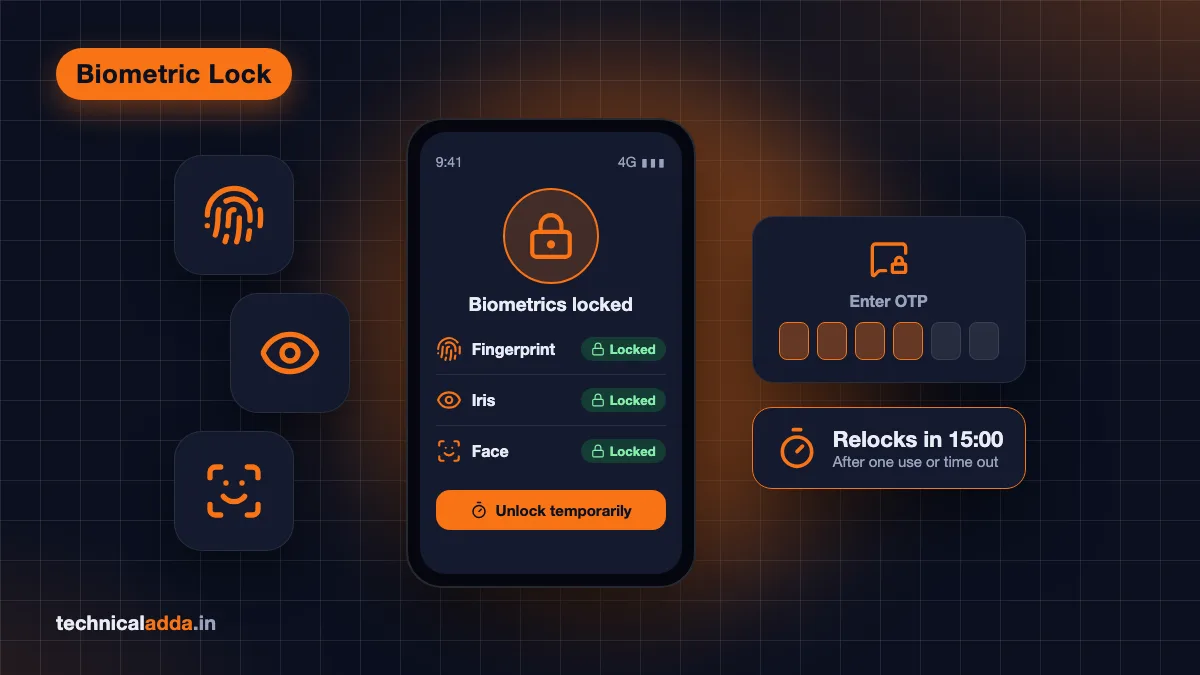
Quick answer: To lock Aadhaar biometrics, log in at myaadhaar.uidai.gov.in with your Aadhaar number and OTP, open Lock/Unlock Biometrics, tick the consent box and choose Lock. In the Aadhaar app, tap the biometric lock option on your profile. To unlock, use the same screen. UIDAI says a temporary unlock lasts generally 15 minutes or one transaction, then relocks automatically.
What Aadhaar biometric lock does
Aadhaar biometric lock is a free UIDAI service that blocks every biometric authentication on your Aadhaar number: fingerprint, iris and face. While it's on, no bank, telecom shop, ration dealer or app can verify you with your biometrics, even if they hold a copy of your fingerprint.
UIDAI's Authentication FAQ (opens in new tab) (last updated 16 October 2026) puts it plainly: once locked, "any entity by any means cannot perform biometric based Aadhaar authentication" for that person. The lock stays on until you unlock it temporarily or disable the locking system.
What it doesn't block matters just as much:
- OTP authentication keeps working. UIDAI confirms you can still use OTP-based services and OTP eKYC while biometrics are locked.
- Demographic data stays the same. Your name, address, date of birth and mobile number don't change.
- Your Aadhaar number still works for things like showing an e-Aadhaar or offline QR verification.
The reason this matters: fingerprint fraud through the Aadhaar Enabled Payment System (AePS). AePS lets anyone withdraw cash from a linked bank account at a micro-ATM using just an Aadhaar number and a fingerprint. Gujarat Police's AePS fraud awareness note (opens in new tab) describes fingerprints being lifted from property registration documents and fake scanners, then cloned in silicone. A locked biometric makes those clones useless for Aadhaar authentication.
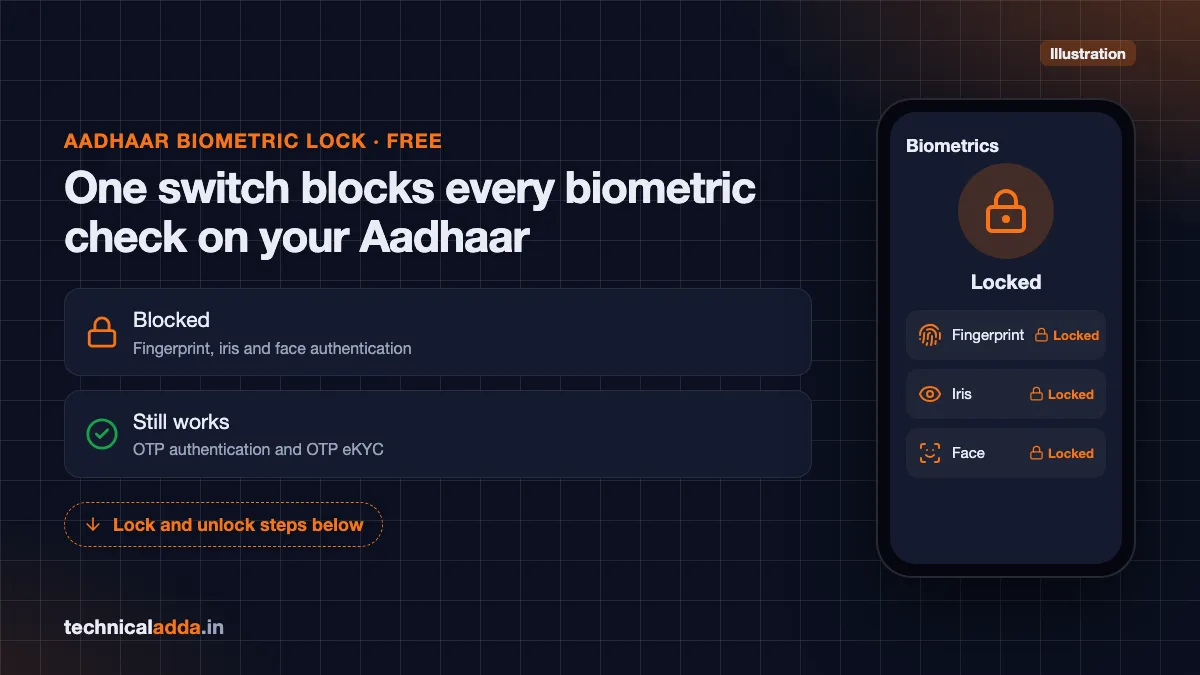
One free switch locks fingerprint, iris and face authentication, while OTP and OTP eKYC keep working.
Is biometric lock necessary? Who should turn it on
It isn't mandatory, but it's the single cheapest protection against fingerprint-based Aadhaar fraud. UIDAI itself suggests locking in three situations:
- You suspect misuse or see authentication attempts you don't recognise.
- You don't currently use biometric services such as AePS cash withdrawal or fingerprint verification at a bank.
- You want a preventive safety measure while you keep using OTP or demographic authentication.
In practice, that covers most smartphone users. If you do your banking through apps and UPI, you rarely give a fingerprint for Aadhaar. Keep the lock on.
Think twice, or plan ahead, in these cases:
- Elderly parents who withdraw pension or cash at a bank mitra counter with a fingerprint. Each visit needs a temporary unlock from a phone that receives the OTP. If the family member with the phone lives elsewhere, this gets awkward. The protection is still worth it for many families, but agree on a routine.
- Ration card holders whose state uses fingerprint authentication at the fair price shop.
- Anyone buying a new SIM or opening a bank account soon, since many of these use biometric eKYC.
- Face authentication users, such as pensioners submitting a digital life certificate by face scan. Face is a biometric too, so it gets locked.
None of these is a reason to skip the lock. They're reasons to know the unlock steps before you stand at a counter.
Before you start
You need three things:
- A mobile number registered with Aadhaar. UIDAI says this is mandatory, because every lock and unlock is confirmed with an OTP. If your number isn't registered, you must visit an Aadhaar Seva Kendra or enrolment centre first. The Aadhaar app can't register a mobile number for the very first time.
- Your 12-digit Aadhaar number, or your 16-digit Virtual ID (VID) on the portal.
- The phone with that SIM in hand, with signal. An OTP that doesn't arrive is the most common hold-up.
There's no fee. UIDAI provides the lock and unlock service free, and you can switch it on and off as many times as you like.
How to lock Aadhaar biometrics on myAadhaar
The myAadhaar portal works on any phone or computer browser. Use only the official address, myaadhaar.uidai.gov.in (opens in new tab). Fake Aadhaar sites copy the look of the portal to collect OTPs; our guide to check whether a website or link is fake shows what to look for.
- Open myaadhaar.uidai.gov.in and tap Login.
- Enter your Aadhaar number and the captcha, then tap Login with OTP.
- Enter the OTP sent to your registered mobile number.
- From the services list, open Lock/Unlock Biometrics.
- Read the note, tick the consent checkbox and tap Next.
- Choose Lock Biometric and confirm.
- You'll see a success message. The current status now shows biometrics as locked.
Portal labels change a little between updates, but the service is always called something close to Lock/Unlock Biometrics. If you don't see it, scroll the services list rather than searching the home page.
How to lock biometrics in the Aadhaar app
UIDAI launched its new Aadhaar app in January 2026. Its Aadhaar app FAQ (opens in new tab) (last updated 18 September 2026) says the app offers a "one-click biometric lock/unlock facility", along with authentication history, e-Aadhaar download and selective sharing.
First-time setup, per UIDAI:
- Install the Aadhaar app by UIDAI from the Play Store or App Store. On iPhone it needs iOS 16 or later, per its App Store listing.
- Select your language, enter your Aadhaar number and accept the terms.
- Choose the SIM card with your registered number.
- Complete face authentication.
- Set a 6-digit PIN.
Then, to lock:
- Open the app and enter your 6-digit PIN.
- On your profile, tap the biometric status (news reports describe it as showing Biometrics Unlocked when the lock is off).
- Tap Confirm Biometrics Lock.
Two things catch people out. The app won't run with Android developer options switched on, so turn those off in Settings first. And face authentication during setup is itself a biometric check, so finish registering the app before you switch the lock on.
The app can hold up to five profiles, which helps if you manage Aadhaar for parents or children. A minor's profile can be added if the guardian relationship was set during enrolment.
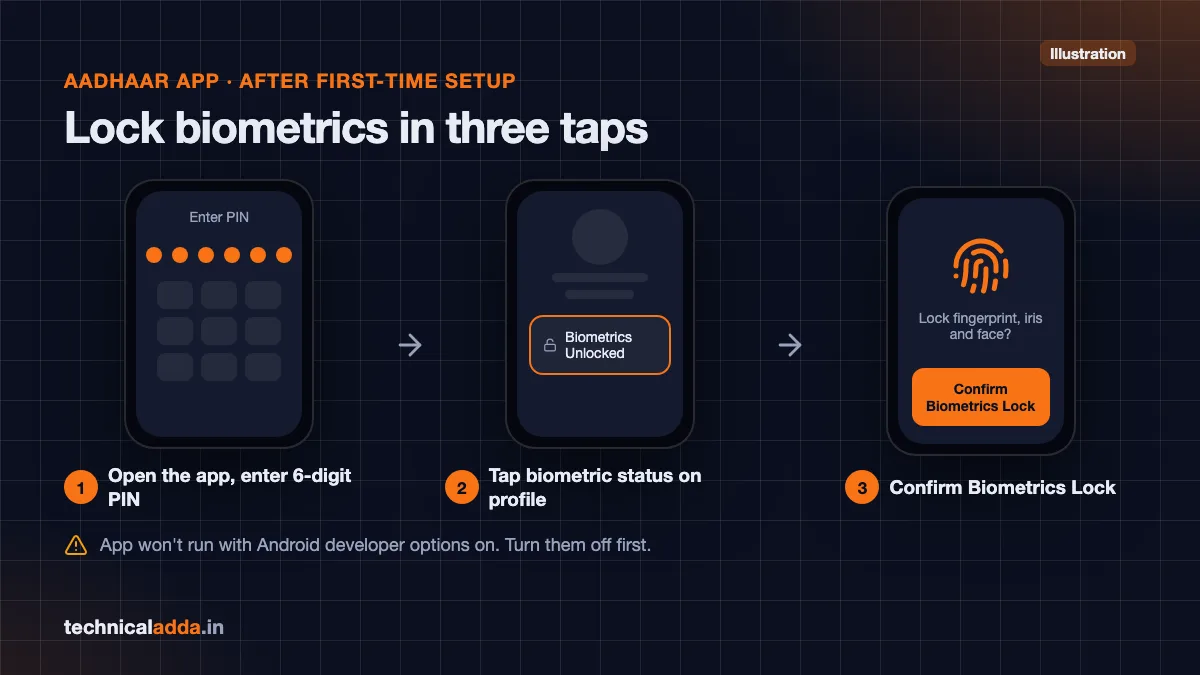
After setup, locking takes three taps in the Aadhaar app. Turn off Android developer options first or the app won't run.
Aadhaar biometric lock unlock: temporary unlock vs disable
You have two ways to open a locked biometric, and picking the right one matters.
Temporary unlock is what you want almost every time. UIDAI's FAQ says it is "valid for a limited duration (generally 15 minutes) or for a single authentication transaction", after which biometrics lock again automatically. Do it while you're at the counter, give your fingerprint, and you don't have to remember to re-lock.
Disable the locking system turns the lock off completely until you enable it again. Use this only if you'll need biometric authentication often, for example several bank visits over a week. Remember to switch it back on.
Steps for a temporary unlock on myAadhaar
- Log in at myaadhaar.uidai.gov.in with your Aadhaar number and OTP.
- Open Lock/Unlock Biometrics.
- Tick the consent box and tap Next.
- Choose the unlock option (not disable) and confirm.
- Give your fingerprint, iris or face scan within the unlock window.
Steps for a temporary unlock in the Aadhaar app
- Open the app and enter your PIN.
- Tap the biometric status on your profile.
- Choose to unlock and confirm.
Timing tip: do the unlock only when the operator is ready to scan. If the queue is long and your window runs out, the scan fails and you'll have to unlock again. Older guides and bank pages say 10 minutes; UIDAI's current FAQ says generally 15 minutes, so treat 10 minutes as the safe planning figure.
You can also get help with unlocking at an Aadhaar Seva Kendra or an enrolment centre, which UIDAI lists as official channels. That's useful for someone without a smartphone, though they still need the registered mobile for the OTP.
| Option | How long it lasts | Relocks by itself | Best for |
|---|---|---|---|
| Lock biometrics | Until you change it | Not applicable | Everyday protection |
| Temporary unlock | Generally 15 minutes or one transaction (UIDAI) | Yes | A single bank, ration or SIM visit |
| Disable locking system | Until you enable it again | No | Many biometric visits in a short period |
| Aadhaar (UID) lock | Until you unlock with your latest VID | No | Maximum lockdown when you don't need Aadhaar at all |
What about mAadhaar?
mAadhaar, the older UIDAI app, also had a biometric lock under its Biometric Settings, protected by a passcode and OTP. UIDAI posted on X that "mAadhaar will discontinue soon", as reported in May 2026 by Biometric Update (opens in new tab), and its current FAQs point to the new Aadhaar app instead.
If mAadhaar still works on your phone, the lock you set there applies to the same Aadhaar number, because the lock lives with UIDAI and not inside the app. But don't install mAadhaar fresh in 2026. Move to the new Aadhaar app or use the myAadhaar portal, and be wary of lookalike apps with Aadhaar in the name.
Aadhaar lock vs biometric lock
These are two different switches, and people confuse them constantly.
Biometric lock blocks only fingerprint, iris and face. OTP and demographic authentication still work.
Aadhaar (UID) lock blocks all authentication on your Aadhaar number, its UID token and its VID: biometric, demographic and OTP. UIDAI's FAQ is clear on three points:
- You need a 16-digit VID before you can lock your UID. Generate one on myAadhaar or by SMS: send
GVIDfollowed by the last 4 or 8 digits of your Aadhaar to 1947 from your registered mobile. - To unlock, you need your latest VID. Forgot it? SMS
RVIDwith the last 4 or 8 digits of your Aadhaar to 1947. - The UID lock has no automatic expiry, and while it's on you can't log in to the Aadhaar app, because the app itself uses Aadhaar authentication.
| Feature | Biometric lock | Aadhaar (UID) lock |
|---|---|---|
| Blocks fingerprint, iris, face | Yes | Yes |
| Blocks OTP authentication | No | Yes |
| Blocks demographic authentication | No | Yes |
| Needs a VID to set | No | Yes, 16-digit VID |
| Temporary unlock | Yes, auto relocks | No, stays unlocked until you lock again |
| Aadhaar app login while on | Works | Not possible |
| Cost | Free | Free |
| Good for | Almost everyone | People who rarely need Aadhaar authentication |
For most readers, biometric lock is the right default. UID lock is stronger but breaks OTP eKYC too, so you'd be unlocking it for every bank KYC, DigiLocker login or SIM verification.
Error 330 and other problems
Error 330 means "Biometrics locked by Aadhaar holder". It's the code UIDAI lists for an authentication attempt on a locked biometric. If a bank or ration shop operator shows you 330, your lock is working. Do a temporary unlock and scan again.
Other common hold-ups:
- OTP not arriving. Check signal, restart the phone and request the OTP again after a minute. If your registered number is old or lost, you must update it at an Aadhaar Seva Kendra. If you lost the phone with the SIM, block the handset through CEIR and get a duplicate SIM before anything else.
- Error 951. UIDAI lists this as a "biometric lock related technical error". Wait and retry, and call 1947 if it repeats.
- Unlocked but the scan still fails. Your window may have expired, or the fingerprint itself isn't matching. Worn fingerprints are common in older people and manual workers. A biometric update at an Aadhaar centre can help with repeated mismatches.
- Face scan fails in an app. If you use face authentication for a pension life certificate or app onboarding, check whether the biometric lock is on. Face is locked along with fingerprint and iris.
Check your Aadhaar authentication history
Your authentication history shows every time your Aadhaar was used, and it's the fastest way to spot misuse. You can check it on myAadhaar or in the Aadhaar app with your registered mobile.
For each record, UIDAI shows the modality (biometric, OTP or demographic), the date and time, the agency's name (the AUA), its transaction ID, whether it succeeded or failed, and any UIDAI error code. You can download records for up to 6 months at a time.
Look for these red flags:
- Biometric authentications on days you didn't visit a bank, shop or office.
- Agency names you've never dealt with.
- A burst of failed attempts, which can mean someone is trying a cloned print.
Make it a habit to check once a month. It takes a minute, and a failed biometric attempt with error 330 is proof the lock just saved you.
If you suspect your biometrics were misused
Act in this order:
- Lock biometrics now on myAadhaar or the Aadhaar app, if not already locked.
- Download your authentication history and note dates, agency names and transaction IDs.
- Call your bank if money left your account through AePS. Ask them to block AePS on the account and raise a dispute.
- Report the fraud on the National Cyber Crime Helpline 1930 or at cybercrime.gov.in (opens in new tab). Quick reports give the best chance of freezing the money.
- Tell UIDAI on the toll-free helpline 1947 or by email at [email protected], and contact the agency named in the history.
A few habits lower the risk:
- Don't leave fingerprints on documents you don't control, and mask Aadhaar copies so only the last 4 digits show.
- Never share an Aadhaar OTP with a caller. UIDAI, banks and police don't ask for it. Our explainer on the digital arrest scam shows how fake officers pressure people into doing exactly that.
- Keep your phone secure, since the OTP lands there. If you're unsure, read how to check if your phone is hacked.
- Review UPI mandates on your account too. Fraudsters who get one foothold often try more, and our guide to cancel UPI autopay covers that cleanup.
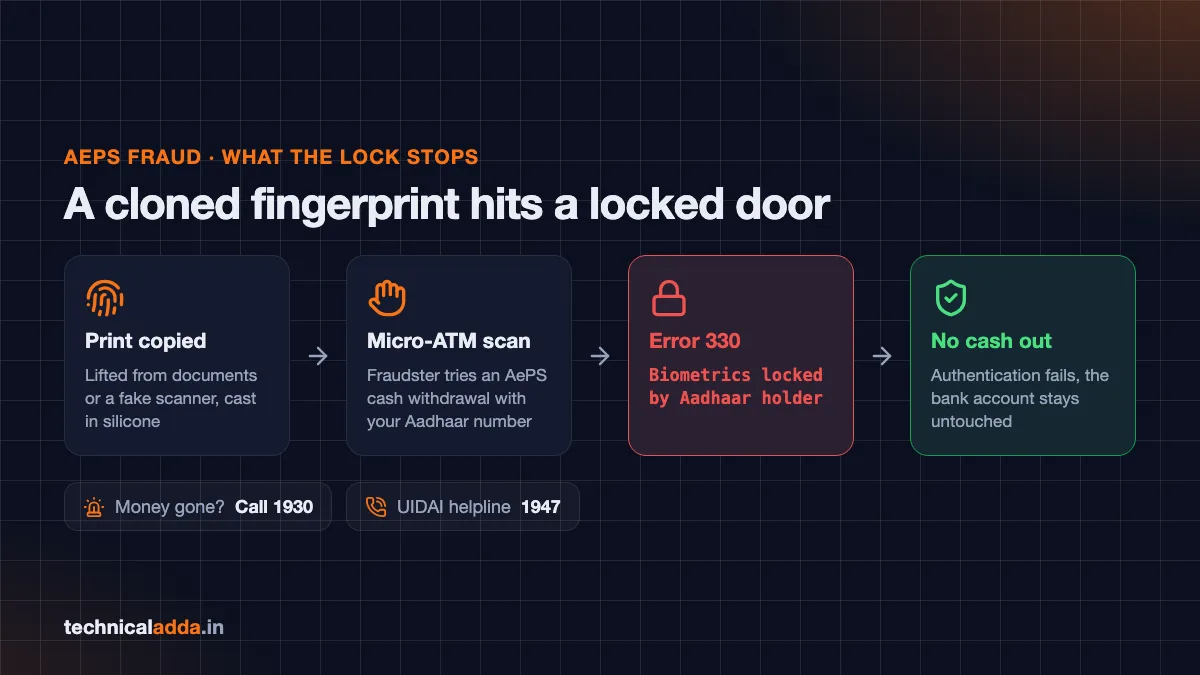
With biometrics locked, a cloned fingerprint gets error 330 at the scanner. If money already left, call 1930.
What to remember before your next fingerprint scan
- Aadhaar biometric lock unlock is free on myAadhaar and the new Aadhaar app; both need an OTP on your registered mobile.
- The lock blocks fingerprint, iris and face authentication. OTP authentication keeps working.
- A temporary unlock lasts generally 15 minutes or one transaction (per UIDAI) and relocks itself. Disabling needs you to re-enable it manually.
- Aadhaar (UID) lock is a stronger, separate switch that blocks OTP too and needs your latest 16-digit VID.
- Error 330 means your biometrics are locked. Unlock temporarily and scan again.
- Check authentication history monthly; report misuse to your bank, 1930, cybercrime.gov.in and UIDAI on 1947.
Lock it today, unlock only at the counter
The safest routine is simple and free: lock once on myAadhaar or the Aadhaar app, then do a temporary unlock only when you're standing at a counter that needs your fingerprint or face. Check your authentication history every month, and keep the 1947 and 1930 numbers handy.
Your Aadhaar OTPs land on your phone, so lock that down next with our guide to strong password examples, and find more government service guides in Digital India.
FAQ
Frequently Asked Questions
How do I lock my Aadhaar biometrics?
Log in at myaadhaar.uidai.gov.in with your Aadhaar number and an OTP, open Lock/Unlock Biometrics, tick the consent box and choose Lock Biometric. You can also do it in the official Aadhaar app by tapping the biometric status on your profile and confirming the lock. A mobile number registered with Aadhaar is mandatory, and the service is free.
How long does Aadhaar biometric unlock last?
UIDAI's current FAQ says a temporary unlock is valid generally for 15 minutes or for a single authentication transaction, after which your biometrics lock again automatically. Older guides mention 10 minutes, so unlock only when the operator is ready to scan. If the window expires before the scan, simply unlock again from the portal or app.
Is Aadhaar biometric lock necessary?
It isn't mandatory, but it's strongly worth turning on if you rarely give fingerprints for Aadhaar. It stops anyone, including fraudsters with cloned fingerprints, from using your biometrics for Aadhaar authentication or AePS withdrawals. OTP services keep working. If you use fingerprint banking or ration services often, keep it on and unlock temporarily for each visit.
What is the difference between Aadhaar lock and biometric lock?
Biometric lock blocks only fingerprint, iris and face authentication, while OTP and demographic checks still work. Aadhaar (UID) lock blocks every kind of authentication on your Aadhaar number, including OTP, and needs a 16-digit VID to set. To remove a UID lock you need your latest VID. Most people should use biometric lock.
What does Aadhaar error code 330 mean?
Error 330 means "Biometrics locked by Aadhaar holder". You'll see it when a bank, ration shop or SIM seller tries fingerprint, iris or face authentication while your biometric lock is on. It shows the lock is working. Do a temporary unlock on myAadhaar or the Aadhaar app, then ask the operator to scan again within the window.
Can I lock Aadhaar biometrics without a registered mobile number?
No. UIDAI says a registered mobile number is mandatory, because every lock and unlock is confirmed with an OTP. If your number isn't linked, visit an Aadhaar Seva Kendra or authorised enrolment centre to register it. The Aadhaar app can update an existing number but cannot register a mobile number with Aadhaar for the first time.
Does biometric lock affect OTP based eKYC and UPI?
No. Biometric lock does not affect OTP authentication, so OTP eKYC, DigiLocker logins and Aadhaar OTP based UPI setup keep working. It only blocks services that rely on fingerprint, iris or face, such as biometric eKYC at a bank or AePS cash withdrawal. For those, unlock temporarily and the lock returns on its own.
Can I use mAadhaar for biometric lock in 2026?
UIDAI has said mAadhaar will be discontinued soon, and its FAQs now point to the new Aadhaar app. If mAadhaar still works on your phone, the lock it sets applies to your Aadhaar, because the lock is stored by UIDAI. For new setups, use the official Aadhaar app or the myAadhaar portal instead.
What should I do if someone misused my Aadhaar biometrics?
Lock your biometrics immediately, then download your authentication history to note dates and agency names. Call your bank if money was withdrawn and ask it to block AePS on the account. Report the fraud on 1930 or cybercrime.gov.in, and inform UIDAI on the 1947 helpline or at [email protected].