Ollama Not Using GPU: What 100% CPU in ollama ps Means and How to Fix It
AI Coding 17 min read By Sanjeev Pratap Singh
In this articleTable of contents13
Last updated: 11 November 2026
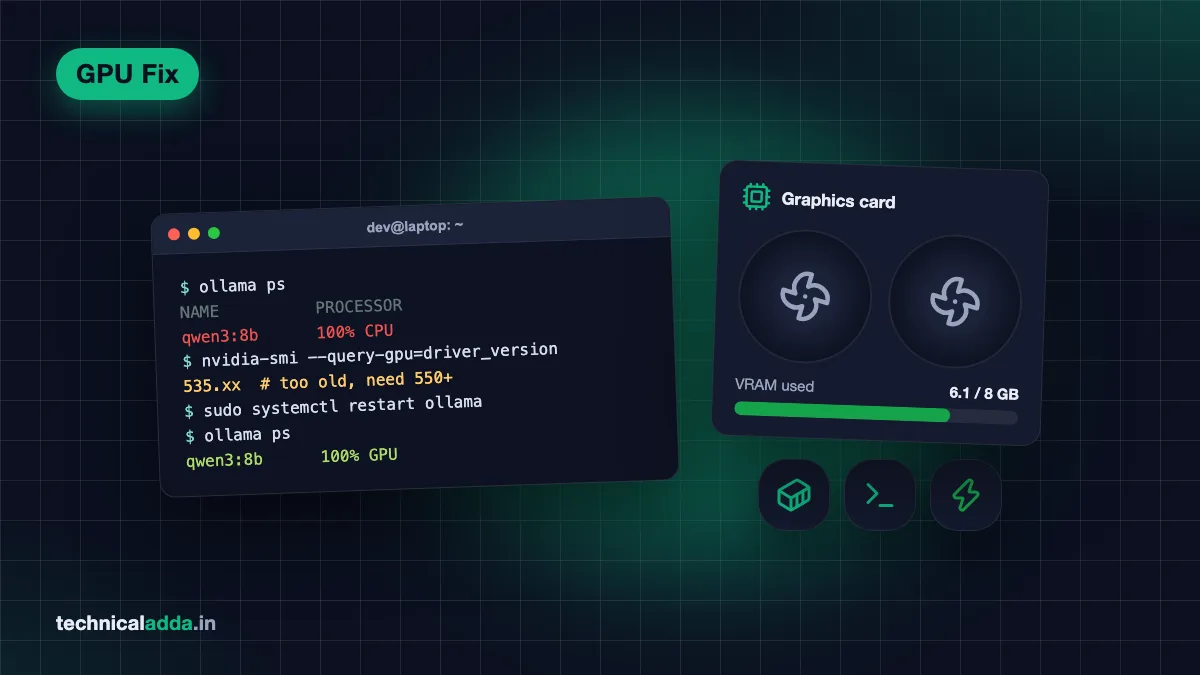
When Ollama is not using GPU, the cause is almost always one of five things: a missing or old driver, a graphics card Ollama doesn't support, a model too big for your VRAM, a Docker container started without GPU access, or WSL set up the wrong way. Run ollama ps first. If the PROCESSOR column says "100% CPU", work down this guide.
Each fix below is for a specific setup: NVIDIA on Windows and Linux, AMD Radeon with ROCm or Vulkan, Apple Silicon and Intel Macs, WSL2 and Docker. Commands and driver versions come from Ollama's own documentation, checked in November 2026.
Quick answer: If Ollama is not using your GPU, run
ollama psand check the PROCESSOR column. "100% CPU" means no GPU was found: update the driver (NVIDIA 550 or newer), restart Ollama and read the server log. A CPU/GPU split means the model is bigger than your VRAM, so pick a smaller model or shorter context.
Step 1: confirm Ollama is really on the CPU
Don't guess from speed. Load a model and ask Ollama directly where it put it.
ollama run llama3.2:3b "hello"
ollama ps
The PROCESSOR column tells you everything. Ollama's FAQ (opens in new tab) explains the three values:
| PROCESSOR shows | What it means | Where to look |
|---|---|---|
100% GPU |
Whole model is in VRAM. You're fine. | Slow anyway? See the "slow even on the GPU" section |
100% CPU |
No usable GPU found, or GPU use is switched off | Driver, platform and Docker sections |
48%/52% CPU/GPU (any split) |
GPU works, but the model doesn't fit in VRAM | Partial offload section |
Next, read the server log. Ollama takes stock of your GPUs every time the server starts, and the log says what it found and why it skipped a card.
| Where Ollama runs | How to read the log |
|---|---|
| macOS app | cat ~/.ollama/logs/server.log |
| Linux (systemd service) | journalctl -u ollama --no-pager --follow --pager-end |
| Windows app | Open %LOCALAPPDATA%\Ollama and read server.log |
| Docker | docker logs ollama (or your container name) |
Manual ollama serve |
Printed in that terminal |
For more detail, restart the server with OLLAMA_DEBUG=1 set. Ollama's troubleshooting page (opens in new tab) says this adds extra information during GPU discovery, which is exactly the part you need.
Also check the GPU from outside Ollama. On NVIDIA, nvidia-smi should list your card and show an ollama process using memory while a model is loaded. On Windows, Task Manager's Performance tab shows dedicated GPU memory filling up. On a Mac, Activity Monitor has a GPU History window under the Window menu.
Why Ollama uses CPU instead of GPU
Ollama falls back to the CPU quietly. It won't stop with an error; it just runs slowly. These are the causes, roughly in order of how often they come up in forum threads:
- Driver missing or too old. Ollama needs NVIDIA driver 550 or newer. Fresh Linux installs often run the open-source nouveau driver, which Ollama can't use.
- GPU not supported. NVIDIA cards below compute capability 5.0 (Kepler era and older) aren't supported. Many AMD cards aren't on the ROCm list.
- Model doesn't fit. Ollama keeps what doesn't fit in VRAM on the CPU. A 4 GB laptop GPU can't hold an 8B model plus its context.
- Docker without GPU flags. A plain
docker run ollama/ollamais CPU-only by design. - WSL1, or a Linux driver installed inside WSL2. Both break GPU passthrough.
- Intel Mac or Docker on a Mac. Neither gets GPU acceleration.
- A leftover setting.
CUDA_VISIBLE_DEVICES=-1,ROCR_VISIBLE_DEVICES=-1ornum_gpuset to 0 all force CPU on purpose. - Linux suspend and resume. After sleep, Ollama sometimes can't find the NVIDIA GPU until the driver module reloads.
The Linux install script gives an early warning for cause 1. If you saw WARNING: No NVIDIA/AMD GPU detected. Ollama will run in CPU-only mode. during install, the script couldn't see your card at all. Fix the driver, then reinstall or restart Ollama.
When Ollama falls back to the CPU, the processor does all the work while the graphics card stays idle, so replies crawl.
Ollama not using GPU on NVIDIA
NVIDIA is the most common setup, and the fix is usually the driver. Ollama's GPU support page (opens in new tab) lists the requirements: compute capability 5.0 or higher and driver 550 or newer. Older cards with compute capability 5.0 to 6.2 (GTX 900 and GTX 10 series) need driver 570 or newer.
Check the driver and compute capability
nvidia-smi
nvidia-smi --query-gpu=name,compute_cap,driver_version --format=csv
If nvidia-smi isn't found or fails, Ollama can't use the card either. Fix that first.
- Windows: Install the latest Game Ready or Studio driver from NVIDIA. Ollama's Windows page asks for driver 551.61 or newer and Windows 10 22H2 or later.
- Ubuntu:
sudo ubuntu-drivers installpicks the recommended proprietary driver. Reboot afterwards. - Other distros: Use the distro's NVIDIA packages, not nouveau.
Then restart Ollama so it runs GPU discovery again. On Linux that's sudo systemctl restart ollama. On Windows, quit Ollama from the system tray and open it again.
GPU lost after sleep on Linux
If Ollama used the GPU yesterday and today shows 100% CPU after the laptop woke from sleep, reload the NVIDIA UVM module. This is the workaround from Ollama's docs:
sudo rmmod nvidia_uvm && sudo modprobe nvidia_uvm
sudo systemctl restart ollama
If rmmod complains the module is in use, stop Ollama first, then run it. A reboot does the same job.
A setting is hiding the GPU
Check whether something sets CUDA_VISIBLE_DEVICES. Ollama uses it to pick GPUs, and an invalid value such as -1 forces CPU. On Linux, run systemctl cat ollama to see the service's environment. On Windows, look in your user environment variables.
If you have more than one NVIDIA card, list their UUIDs with nvidia-smi -L and set CUDA_VISIBLE_DEVICES to the UUID you want. Ollama's docs say UUIDs are more reliable than numbers because the numbering order can change.
Laptops with two GPUs
Gaming laptops sold in India usually pair an Intel or AMD integrated GPU with an RTX 3050, 4050 or 4060. Ollama looks for the NVIDIA card through the driver, not through the display, so the integrated GPU running your screen doesn't matter. What matters is that the NVIDIA driver is installed and the laptop isn't in a mode that switches the dedicated GPU off. Some laptops have an "Eco" or "iGPU only" mode in the maker's control app. Switch it to Hybrid or Standard and plug the charger in.
AMD Radeon: ROCm, overrides and Vulkan
AMD support depends on the card more than anything else. Ollama uses ROCm for supported cards and Vulkan as a broader fallback.
Is your Radeon on the ROCm list?
On Linux, Ollama needs the AMD ROCm v7 driver, installed with AMD's amdgpu-install tool. Supported consumer cards include the RX 9000 series (9070 XT, 9070, 9060 XT, 9060), RX 7000 series (7900 XTX down to 7600) and the RX 6800, 6800 XT, 6900 XT and 6950 XT. On Windows the ROCm list is shorter: only RX 7000 series cards, from the 7900 XTX down to the 7600.
If your log says discovery timed out ("failed to finish discovery before timeout"), Ollama's troubleshooting page says the AMD driver is probably older than ROCm 7. Upgrade it, reboot and restart Ollama.
Permissions on Linux
On some distros the ollama service user can't open the GPU devices until it joins the render group (Ollama's GPU page mentions this). Many setups add video as well:
sudo usermod -aG render,video ollama
sudo systemctl restart ollama
Cards not on the list: HSA_OVERRIDE_GFX_VERSION
Some RX 5000 and RX 6000 cards work if you tell ROCm to treat them like a close supported chip. Ollama's docs give the RX 5400 (gfx1034) as the example: set HSA_OVERRIDE_GFX_VERSION=10.3.0 to map it to gfx1030. Run sudo systemctl edit ollama.service, add these two lines in the editor that opens, and save:
[Service]
Environment="HSA_OVERRIDE_GFX_VERSION=10.3.0"
Then apply it with sudo systemctl daemon-reload && sudo systemctl restart ollama.
This is unofficial. If output turns into garbage or the server crashes, remove the override.
Vulkan: the easier route for many cards
Ollama now ships a Vulkan backend that's on by default when installed. It can cover GPUs that aren't on the ROCm list, so try it before giving up on an older Radeon. Windows GPU drivers usually include Vulkan already. Most Linux distros need the Vulkan driver packages (Mesa's RADV for AMD). If a weak integrated GPU grabs the work instead of your dedicated card, point GGML_VK_VISIBLE_DEVICES at the dedicated GPU's index.
Mac: Apple Silicon vs Intel
On a Mac, the answer depends on the chip. Ollama's macOS page (opens in new tab) lists Apple M series Macs with CPU and GPU support, and Intel Macs as CPU only. Both need macOS Sonoma (14) or newer.
- Apple Silicon (M1 to M5): GPU acceleration through Metal is automatic. There's no driver to install. If
ollama psshows a CPU split, the model is too big for the memory macOS lets the GPU use. macOS keeps part of the unified memory for itself, so an 8 GB Mac is best with 3B to 4B models and 16 GB is the practical minimum for 8B models. - Intel Mac: There's no fix. Ollama runs on the CPU only, even on Intel Macs with AMD graphics. Use small models (1B to 4B) or run Ollama on another machine and connect to it.
- Docker on a Mac: Docker Desktop runs containers inside a Linux virtual machine that can't reach the Mac's GPU. Docker's own GPU support page lists
--gpuspassthrough as Windows with WSL2 only. Install the native Ollama app instead. Tools like Open WebUI can still run in Docker and connect to the host athttp://host.docker.internal:11434.
WSL2 on Windows
The simplest fix for WSL problems is to skip WSL: the native Windows Ollama app uses NVIDIA and supported AMD GPUs directly. If you do need Ollama inside Linux on Windows, follow these rules.
- Use WSL2, not WSL1. The Ollama install script refuses to run on WSL1. Check with
wsl -l -vin PowerShell and convert withwsl --set-version <distro> 2. - Install the NVIDIA driver on Windows only. NVIDIA's CUDA on WSL guide (opens in new tab) says plainly: don't install any Linux display driver inside WSL. The Windows driver is passed through automatically.
- Check
nvidia-smiinside WSL. If it isn't on the PATH, NVIDIA says it lives at/usr/lib/wsl/lib/nvidia-smi. If that doesn't show your card, update the Windows driver and runwsl --update. - Reinstall Ollama after fixing the driver. The install script checks
nvidia-smito decide whether the GPU is available.
AMD cards are a weak spot here. Ollama's install script notes that WSL2 only supports GPUs through NVIDIA passthrough, so Radeon owners should use the native Windows app.
If you accidentally installed a Linux NVIDIA driver inside WSL, remove those packages (sudo apt remove --purge '^nvidia-.*'), then restart WSL with wsl --shutdown.
Docker: the container can't see the GPU
Ollama's Docker image is CPU-only unless you pass the GPU in. This catches most people who copy the first docker run line they find.
NVIDIA on Linux
Ollama's Docker docs (opens in new tab) list these steps. Install the NVIDIA Container Toolkit, configure Docker and restart it:
sudo apt-get install -y nvidia-container-toolkit
sudo nvidia-ctk runtime configure --runtime=docker
sudo systemctl restart docker
Test that containers can see the GPU, then start Ollama with --gpus=all:
docker run --gpus all ubuntu nvidia-smi
docker run -d --gpus=all -v ollama:/root/.ollama -p 11434:11434 --name ollama ollama/ollama
If the first command fails, the problem is the toolkit or driver, not Ollama. You need to add the NVIDIA repository before apt-get install works on a fresh machine; NVIDIA's toolkit install guide has the exact lines for your distro.
For Docker Compose, add a device reservation to the Ollama service:
services:
  ollama:
    image: ollama/ollama
    deploy:
      resources:
        reservations:
          devices:
            - driver: nvidia
              count: all
              capabilities: [gpu]
GPU works, then drops to CPU after a while
Ollama's troubleshooting page describes this one: the container uses the GPU at first, then falls back to CPU with discovery errors in the log. The fix is to switch Docker's cgroup driver. Add "exec-opts": ["native.cgroupdriver=cgroupfs"] to /etc/docker/daemon.json on the host and restart Docker.
AMD in Docker
Use the ROCm image and pass the devices:
docker run -d --device /dev/kfd --device /dev/dri -v ollama:/root/.ollama -p 11434:11434 --name ollama ollama/ollama:rocm
If the container still can't open /dev/kfd, run ls -lnd /dev/kfd /dev/dri /dev/dri/* on the host and pass the group IDs with --group-add. On Fedora and other SELinux distros, sudo setsebool container_use_devices=1 lets containers reach the GPU.
Docker Desktop on Windows
GPU passthrough works only with the WSL2 backend and an NVIDIA card, on current Windows 10 or 11 with an up-to-date driver. Turn on the WSL2 backend in Docker Desktop settings, run wsl --update, then use the same --gpus=all command.
Inside Docker, Ollama only sees the graphics card when the container is started with GPU access, so check that first.
Model too big for VRAM: the partial offload trap
A split like 35%/65% CPU/GPU means the GPU works fine. The model just doesn't fit, so Ollama keeps some layers in system RAM, and every token waits for the slow part. The CPU share sets the pace, so even a small split costs a lot of speed.
VRAM has to hold three things: the model weights, the context (KV cache), and some overhead. Here are download sizes from the Ollama library for common models at their default 4-bit quantisation:
| Model | Download size | Fits fully on |
|---|---|---|
llama3.2:3b |
2.0 GB | 4 GB GPU (RTX 3050 laptop) |
qwen3:4b |
2.5 GB | 4 GB GPU, short context |
llama3.1:8b |
4.9 GB | 6 to 8 GB GPU |
qwen3:8b |
5.2 GB | 8 GB GPU (RTX 4060) |
gemma3:12b |
8.2 GB | 12 GB GPU (RTX 3060 12 GB) |
qwen3:14b |
9.3 GB | 12 GB GPU, short context |
gemma3:27b |
17 GB | 24 GB GPU (RTX 3090, 4090) |
qwen3:32b |
20 GB | 24 GB GPU, short context |
llama3.3:70b |
43 GB | Two 24 GB GPUs or a 64 GB Apple Silicon Mac |
Leave 1 to 2 GB of headroom on top of the download size. Your desktop and browser also use VRAM on Windows.
Shrink the context
Context length eats VRAM fast. Ollama's context length page (opens in new tab) says the default depends on VRAM: 4k tokens under 24 GB, 32k between 24 and 48 GB, and 256k at 48 GB or more. If you raised it for coding tools, that alone can push a model off the GPU. The CONTEXT column in ollama ps shows what each loaded model got.
- Lower it for the whole server:
OLLAMA_CONTEXT_LENGTH=8192 ollama serve, or set the variable in the service. - Cut KV cache memory roughly in half with
OLLAMA_KV_CACHE_TYPE=q8_0. It works when Flash Attention is active, which Ollama turns on automatically where the hardware supports it.
Check num_gpu
num_gpu is the number of layers Ollama sends to the GPU. Ollama sets it automatically. If an old Modelfile, a front end or an API call sets num_gpu to 0, the model runs on the CPU no matter what. Look for it with ollama show <model> --modelfile and in your app's advanced settings.
Why Ollama is slow even on the GPU
If ollama ps shows 100% GPU and it still feels slow, look at these:
- Too many models loaded. Ollama can keep several models in memory (three per GPU by default). If two big models share one card, the second may spill to CPU. Unload with
ollama stop <model>. - Laptop on battery or silent mode. Many laptops throttle the GPU hard on battery. Plug in and choose the performance profile.
- Thermal throttling. A laptop GPU that hits its temperature limit slows itself down. A cooling pad and a clean fan help more than you'd expect.
- The first reply is always slower. Loading a 5 GB model from disk takes seconds, especially from a SATA drive. Models stay loaded for 5 minutes by default;
OLLAMA_KEEP_ALIVEchanges that. - Thinking models. Models like Qwen3 write a long reasoning section before answering. The GPU is working; there's just more to generate.
To measure speed, run ollama run <model> --verbose. It prints the eval rate in tokens per second after each reply, so you can compare before and after a change instead of guessing.
Laptop GPUs slow down on battery and when they overheat, so keep the charger in and the machine cool for steady speed.
Ollama hardware requirements at a glance
Ollama runs on almost anything, but GPU acceleration has firm limits. This table pulls together the requirements from Ollama's docs as of November 2026.
| Platform | GPU acceleration needs | Not supported |
|---|---|---|
| Windows (native) | Windows 10 22H2+, NVIDIA driver 551.61+, or AMD ROCm v7 / Vulkan driver | NVIDIA below compute 5.0 |
| Linux | NVIDIA driver 550+ (570+ for compute 5.0 to 6.2), or AMD ROCm v7, or Vulkan | nouveau driver, very old cards |
| macOS | Apple M series, macOS 14+ | Intel Macs (CPU only) |
| WSL2 | NVIDIA driver on Windows only | WSL1, AMD GPUs |
| Docker (Linux) | NVIDIA Container Toolkit + --gpus=all, or ollama:rocm image |
Plain docker run without flags |
| Docker Desktop | Windows + WSL2 backend + NVIDIA | Docker Desktop on Mac |
For RAM, plan on at least 8 GB for small models and 16 GB for 7B to 8B models. If you're buying a machine for local AI, VRAM matters more than CPU. Our guide to the best laptop for AI and ML students explains which GPUs make sense in India, and the best laptop for programming guide covers general coding machines.
If your own hardware can't run the model you need, a GPU server is the other path. Our self-hosted LLM guide covers sizing a VPS for Ollama, and run an LLM locally on your laptop is the starting point if you're new to Ollama. More developer guides live in our AI coding section.
The short checklist when ollama ps says CPU
- Run
ollama psfirst. "100% CPU" means no GPU found; a CPU/GPU split means the model is too big. - NVIDIA needs compute capability 5.0+ and driver 550+ (570+ for GTX 900 and 10 series). Restart Ollama after any driver change.
- AMD needs a ROCm v7 driver for supported cards. Others may work with
HSA_OVERRIDE_GFX_VERSIONor Vulkan. - Intel Macs and Docker on a Mac never use the GPU. Run Ollama natively on Apple Silicon.
- In Docker, the GPU appears only with the NVIDIA Container Toolkit and
--gpus=all, or theollama:rocmimage with/dev/kfdand/dev/dri. - Keep the model plus context inside VRAM. A smaller model fully on the GPU beats a bigger one split with the CPU.
Read ollama ps, fix that one cause, check again
When Ollama is not using GPU, ollama ps and the server log tell you which branch you're on in under a minute. "100% CPU" points to the driver, the platform or Docker flags. A CPU/GPU split points to model size and context. Fix the matching cause, restart Ollama and check ollama ps again. If you're still deciding which model to run on the hardware you have, our guide to running an LLM locally on your laptop is the next read.
FAQ
Frequently Asked Questions
Why is Ollama not using my GPU?
Ollama falls back to the CPU when it can't find a usable GPU or the model doesn't fit in VRAM. Common causes are an old driver (NVIDIA needs 550 or newer), an unsupported card, Docker started without --gpus=all, WSL1, or an Intel Mac. Run ollama ps, then read the server log, which says what was found during GPU discovery.
How do I check if Ollama is using the GPU?
Load a model and run ollama ps. The PROCESSOR column shows "100% GPU" when the whole model is in VRAM, "100% CPU" when it's in system RAM, and a split such as "40%/60% CPU/GPU" when it's shared. On NVIDIA, nvidia-smi should also list an Ollama process using GPU memory while the model is loaded.
Why does Ollama show a CPU/GPU split?
The model plus its context is bigger than your free VRAM, so Ollama keeps the extra layers in system RAM. The GPU is working, but the CPU part slows every token. Use a smaller model or quantisation, lower the context with OLLAMA_CONTEXT_LENGTH, set OLLAMA_KV_CACHE_TYPE=q8_0, or close other apps using the GPU.
What are the Ollama hardware requirements for GPU?
NVIDIA cards need compute capability 5.0 or higher and driver 550 or newer, or 570 for compute 5.0 to 6.2. AMD cards need a ROCm v7 driver and a supported Radeon, or a Vulkan driver. Macs need Apple Silicon and macOS 14 or newer. Windows needs Windows 10 22H2 or later. Intel Macs run on CPU only.
Does Ollama work with AMD GPUs?
Yes. Ollama supports many Radeon cards through ROCm v7, including the RX 9000 and RX 7000 series and the top RX 6000 cards on Linux. On Windows the ROCm list is shorter. Unsupported cards can often work through the Vulkan backend, or on Linux with HSA_OVERRIDE_GFX_VERSION. AMD GPUs don't work through WSL2, so use the native Windows app.
How do I make Ollama use the GPU in Docker?
On Linux with NVIDIA, install the NVIDIA Container Toolkit, run sudo nvidia-ctk runtime configure --runtime=docker, restart Docker, and start the container with --gpus=all. Test first with docker run --gpus all ubuntu nvidia-smi. For AMD, use the ollama/ollama:rocm image and pass --device /dev/kfd --device /dev/dri. Docker on a Mac can't use the GPU.
Can Ollama use the GPU on an Intel Mac?
No. Ollama's macOS documentation lists Intel x86 Macs as CPU only, including models with AMD Radeon graphics. GPU acceleration is available on Apple M series Macs through Metal. On an Intel Mac, stick to small models of 1B to 4B parameters, or run Ollama on a separate machine with a supported GPU and connect to it over the network.
Why did Ollama stop using the GPU after my laptop woke from sleep?
On Linux, the NVIDIA UVM driver module sometimes doesn't come back properly after suspend, so Ollama finds no GPU and falls back to the CPU. Ollama's documented fix is to run sudo rmmod nvidia_uvm && sudo modprobe nvidia_uvm, then restart the Ollama service. Rebooting the laptop also fixes it.
Why is Ollama slow even when it uses the GPU?
Check that ollama ps shows 100% GPU, not a split. If it does, the slowness usually comes from a laptop on battery or in silent mode, thermal throttling, several models sharing one card, a very large context, or a thinking model writing long reasoning first. Run ollama run <model> --verbose to see tokens per second and compare after each change.
Does Ollama work with the GPU in WSL2?
Yes, with an NVIDIA card. Install the NVIDIA driver on Windows only, never a Linux display driver inside WSL, and make sure the distro runs WSL2. Check that nvidia-smi works inside WSL before installing Ollama. AMD GPUs aren't supported through WSL2, and the native Windows Ollama app is usually the simpler choice anyway.